A live meeting summary while the call is running lets you read what you missed without asking anyone to repeat it. In Chief, Live Notes keeps a short Summary at the top and adds points as people talk. If the Chief window was out of focus or hidden for more than two minutes, Live Notes marks the lines from the part of the call since you left.
Chief is our product, and Live Notes is one of its meeting features, so this post covers what it does and where it falls short.
Key Takeaways
- You read the call so far in a short paragraph, on the "Summary" card at the top of Live Notes, while Chief writes points as people talk.
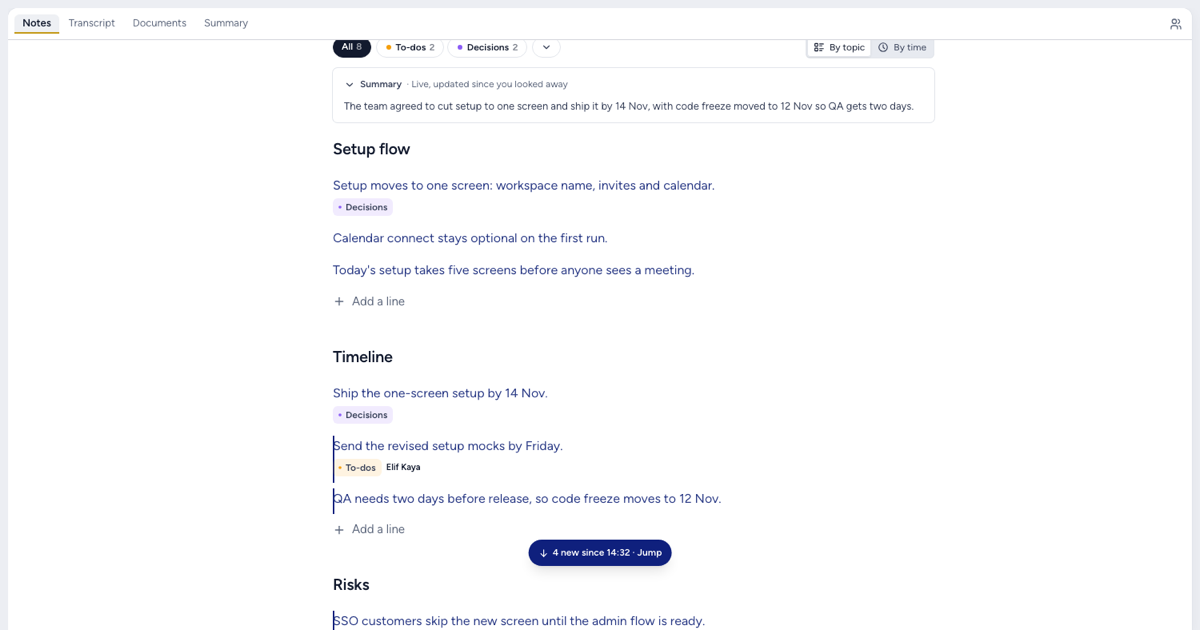
- After more than two minutes with the Chief window out of focus or hidden, Live Notes marks the lines from the part of the call since you left. A Jump button, for example "4 new since 14:32 · Jump", takes you to the first one.
- When Chief tied a point to the line it came from, the point shows the time it was said. Click the time to open the Transcript tab at that moment.
- The notes are a model's reading of the transcript, and they start when the session starts.
What does a live meeting summary show, and what doesn't it?
A live meeting summary gives you the call in a short paragraph, then the points under it. During a Live Session, Chief writes points into Live Notes as people talk.
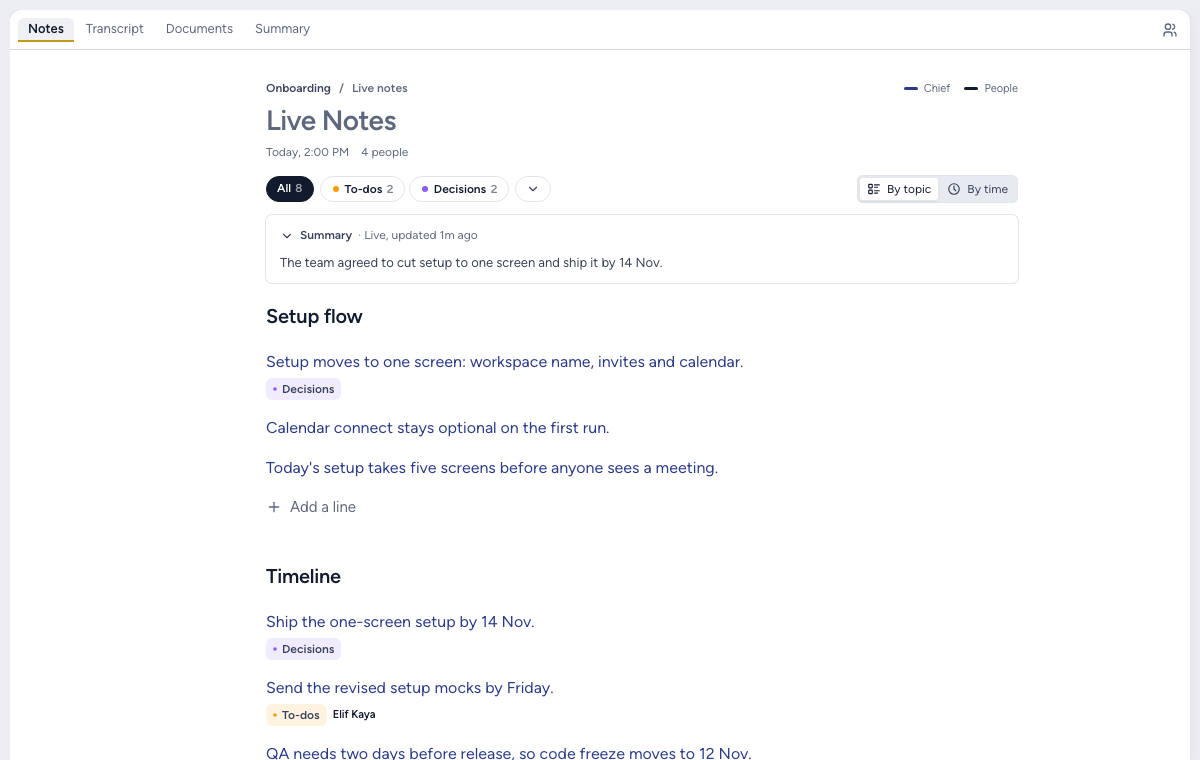
At the top, a card labeled "Summary" holds a short paragraph on the call so far, led by the most concrete outcome. Chief rewrites it as the call goes on. Its status reads "Live, updating now", "Live, updated 3m ago" or "Live, updated since you looked away", and "Final" once the call is over.
Chief edits earlier points as the call moves on: a plan the group settles becomes the decision, and Chief fixes a corrected number in place.
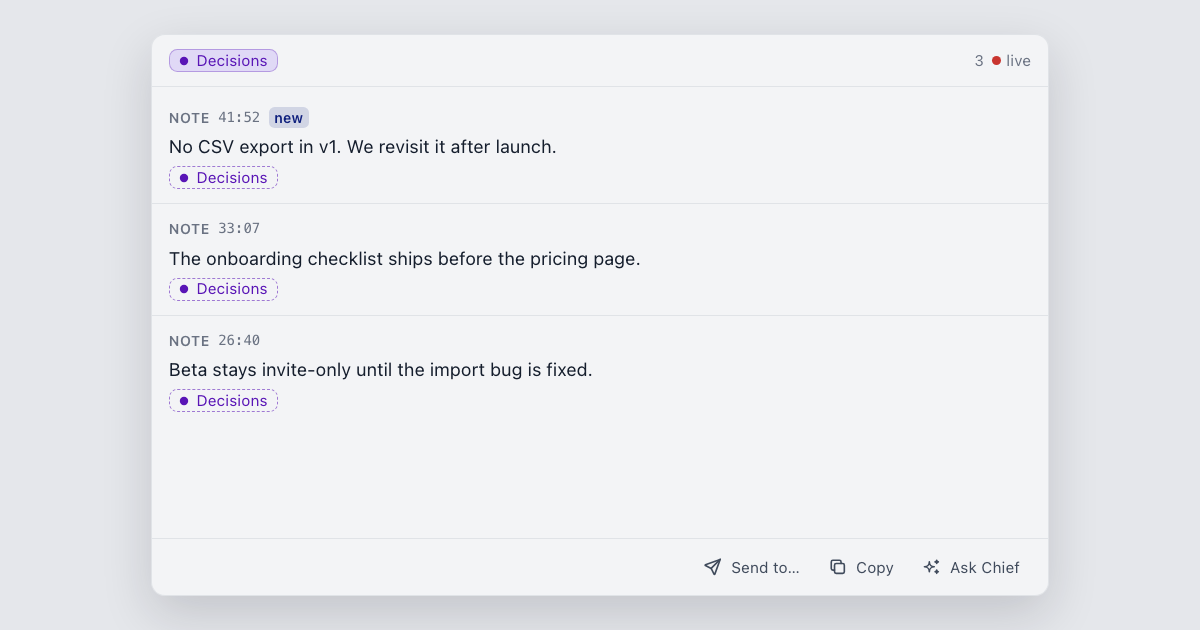
Points carry Auto-apply Tags. The defaults are Decisions and To-dos, and your team can add its own. See tracking decisions and to-dos for those.
Live Notes can't fill in anything said before the session started, and the notes can be wrong.
How do you catch up on a meeting while it's still running?
1. Open Live Notes during the call
Start a Live Session in the Chief desktop app for macOS or Windows and stay on the Notes tab. Its header reads "Live notes", with the Summary card at the top.
2. Come back and jump to what's new
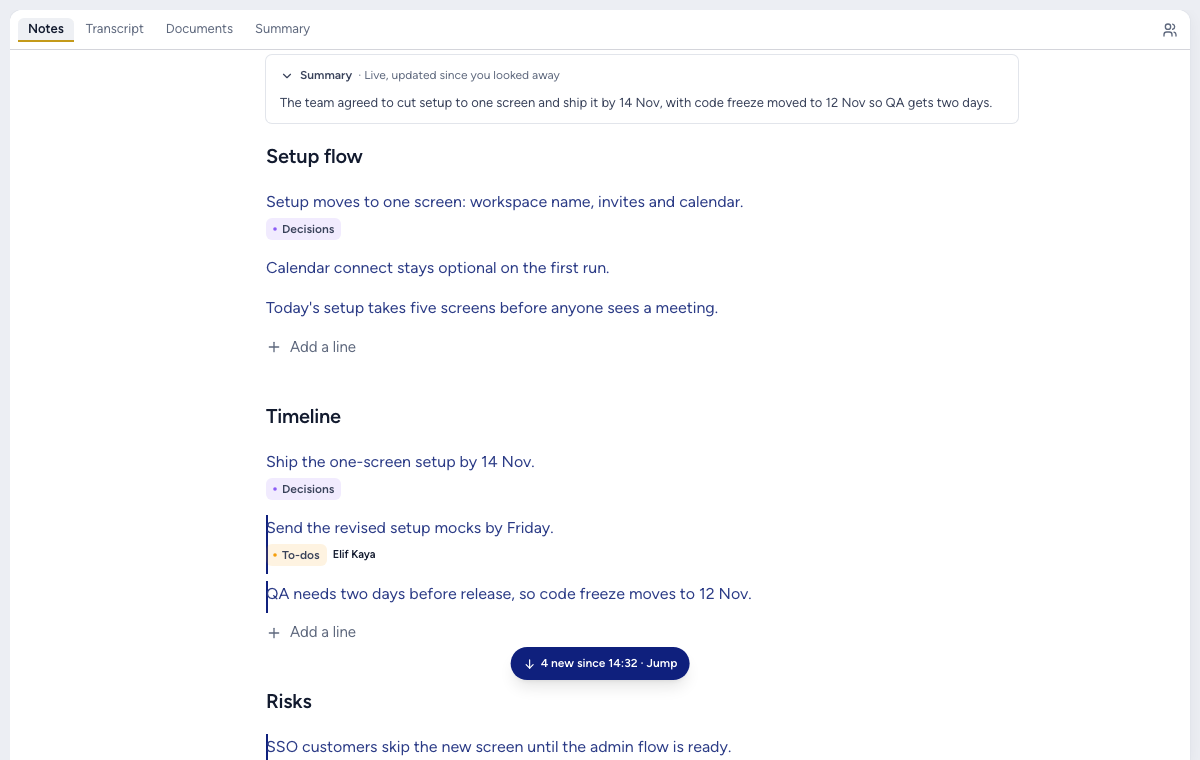
Say you switch windows to answer a message. If the Chief window was out of focus or hidden for more than two minutes, Live Notes marks the lines from the part of the call since you left.
A button reads, for example, "4 new since 14:32 · Jump". Click Jump to scroll to the first new line. New lines carry an accent edge until you've scrolled past them, then the mark clears.
3. Read what you missed in order
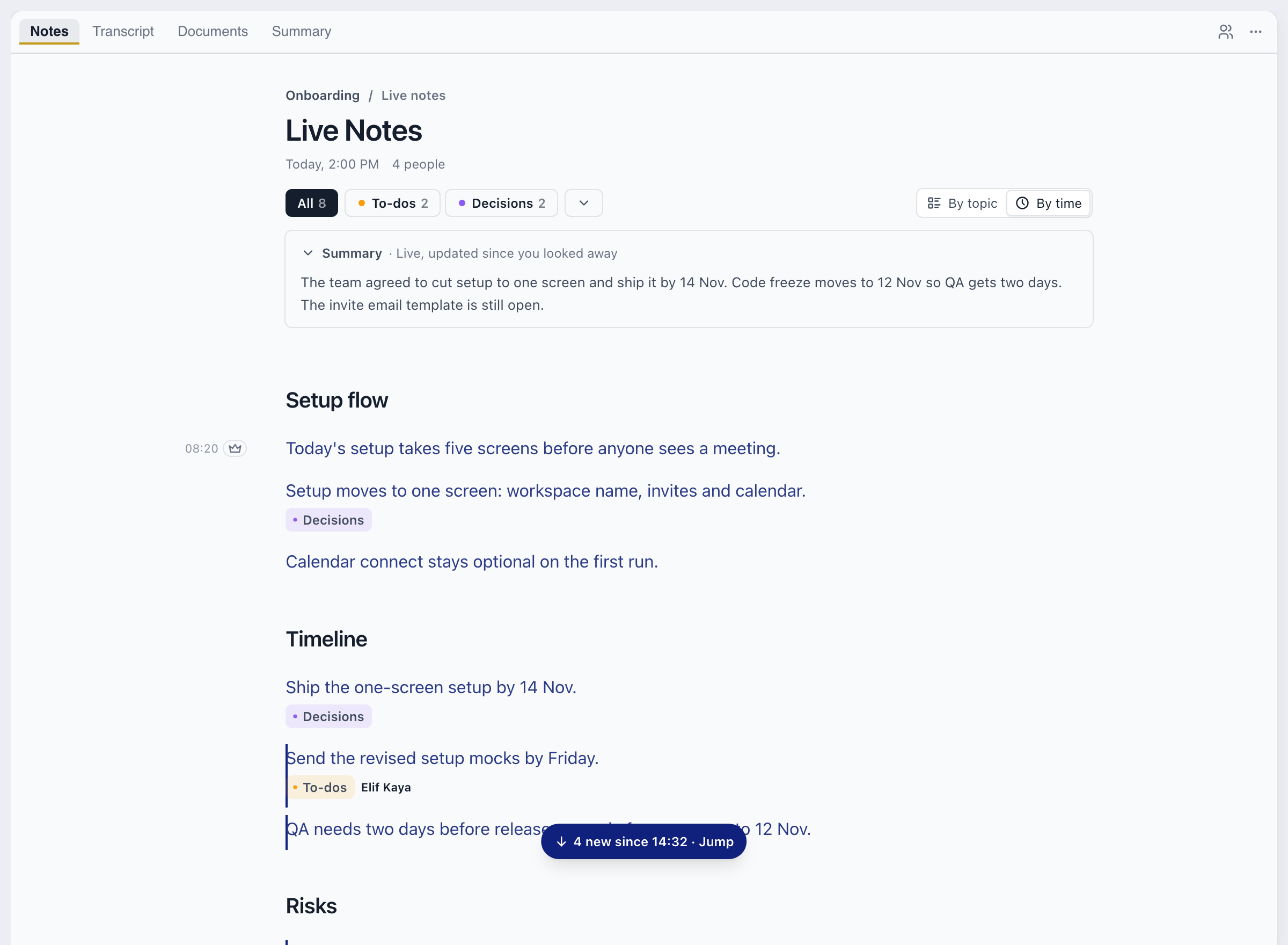
Switch Order from "By topic" to "By time" to read the same notes in the order they came up. Topics go by their earliest point, and the points in each topic go by time.
You can still edit, tick and tag in By time. To add, join or move lines, switch back to By topic.
4. Check a point against the transcript
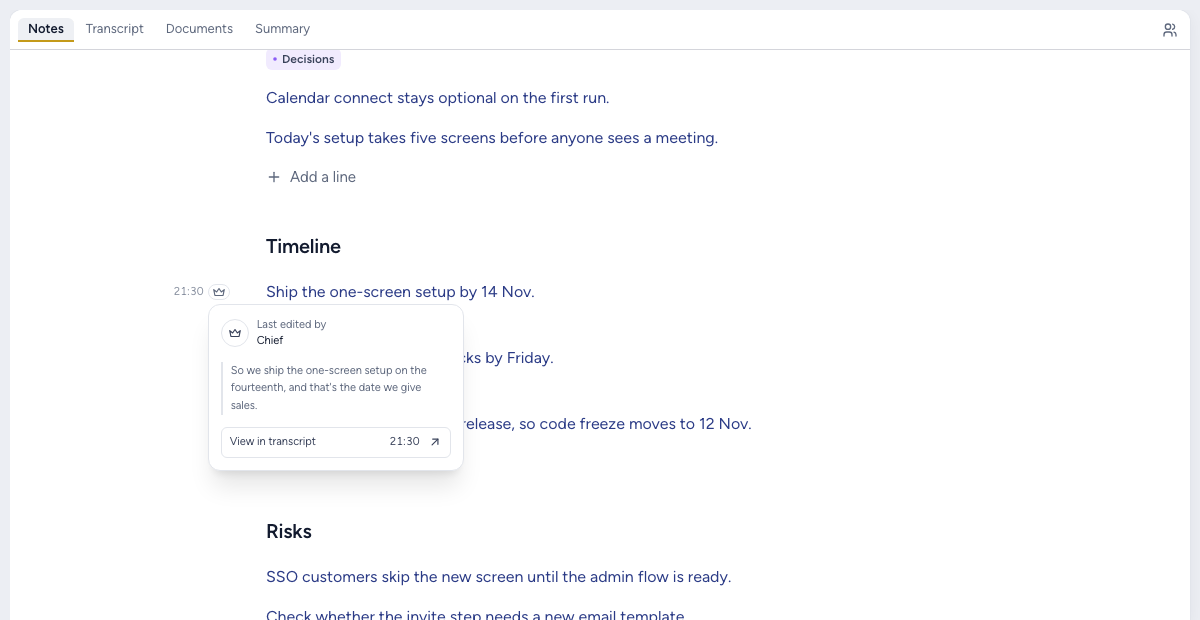
When Chief tied a point to the line it came from, the point shows the time it was said. Click the time, or "View in transcript" in its popover, and the Transcript tab opens at that moment. The transcript is one tab over from Notes.
When Chief kept the line a point came from, the point's popover quotes it.
If you can edit the session, you can type in Live Notes alongside Chief. Chief keeps your wording when you reword one of its points.
5. Pick it up after the call
After the call, the session stays in its project, and its Summary in the web app shows the headline with a Copy button. When a session of five minutes or more ends, Chief emails a recap to the host and to the members who joined.
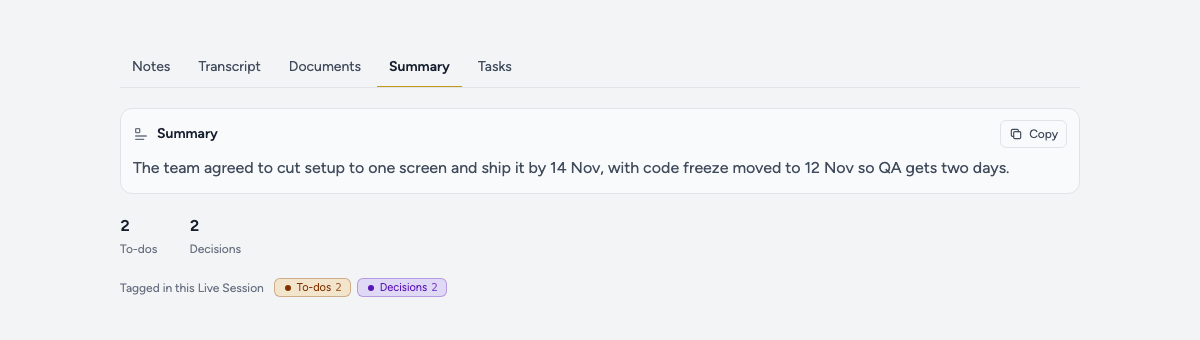
Where does a live meeting summary help?
- You lose the thread during a screen share, or someone asks "did we agree on the date?" and you want the exact line first.
- The meeting runs in a language you read better than you follow at speed. Chief writes the notes in the language the meeting is held in.
You can read more about sessions on the Chief platform page.
What are the limits of Live Notes?
- Drift with Chief in front, or look away for two minutes or less, and Live Notes marks nothing.
- Live Notes covers what the session captured from the moment it started. It can't fill in anything said before that.
- The notes are a model's reading of the transcript. They can be wrong, so check a point against the transcript before you act on it.
- Points arrive in passes at least 30 seconds apart, plus model time, so it isn't instant.
- The mark lives on one device, in memory. A restart drops it.
- The live notes use credits. If your organization runs out, Chief pauses the session.
- During the call, the catch-up mark and the Jump button are only in the Chief desktop app for macOS and Windows. The web app shows the Summary and the points as they update, without them.
- We have no figure for time saved.
For other tools in this category, see how Chief compares.