To give Claude Code context from a meeting, stop the session in Chief and click Send to AI agent. Chief saves the transcript, live notes, captures and documents as a folder in your project and starts Claude Code or Codex in your terminal with a prompt to read it. You set it up once, and each send after that is one click.
Disclosure. We build Chief, so this is our own product. The limits section says where it stops.
Key Takeaways
- You set it up once. Each send is a click on Send to AI agent, which hands the session to Claude Code or Codex in your terminal.
- The context lands as a dated folder in your project, with its own .gitignore.
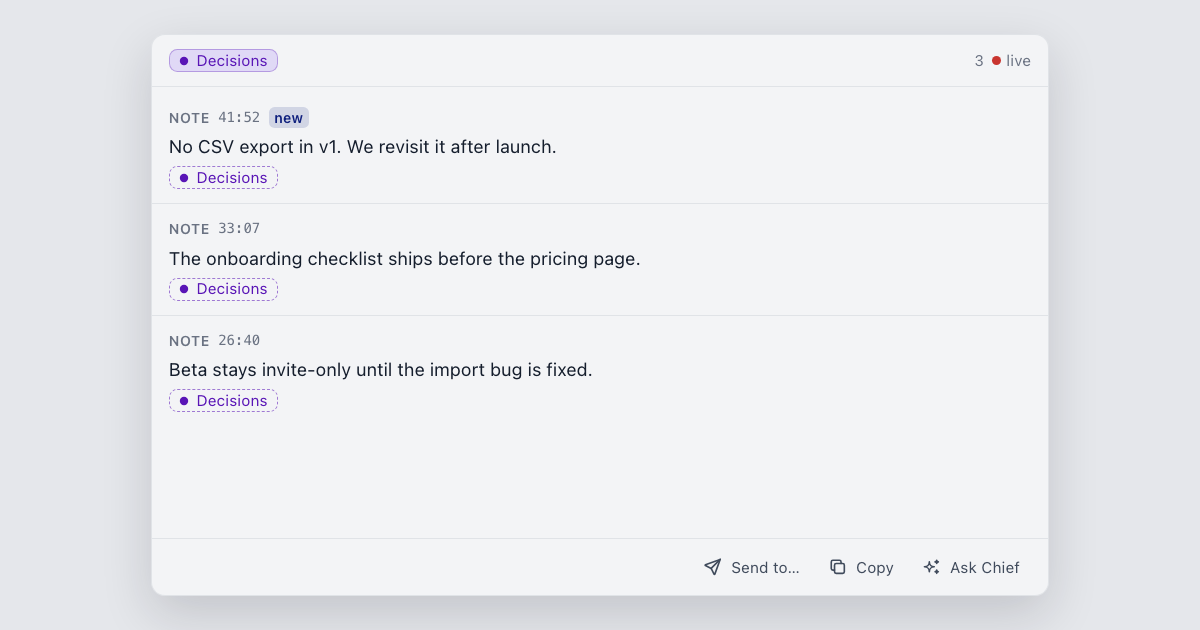
- Send everything, or only the items with tags you pick, such as Decisions.
- The agent runs with its own permissions in your folder. Chief doesn't commit, push or open a pull request.
What happens when you send#
Your agent starts with what you said and decided on the call, with nothing retyped. It's in the Chief desktop app.
Click Send to AI agent and Chief writes the session into a folder in the project you picked. Then it starts Claude Code or Codex in your terminal, pointed at that folder's README. The folder carries its own .gitignore, so it doesn't show up in git status.
Saving a setup runs nothing, and nothing goes out until you click. After that, the conversation belongs to your terminal, and Chief doesn't read it back.
Claude Code opens in your project folder, in your own terminal, with the same permissions it always has. Chief doesn't sit between you and it.
It's for you if you made decisions on a call and now need to turn them into work in a repo.
How to give Claude Code a meeting's context#
1. Stop the session#
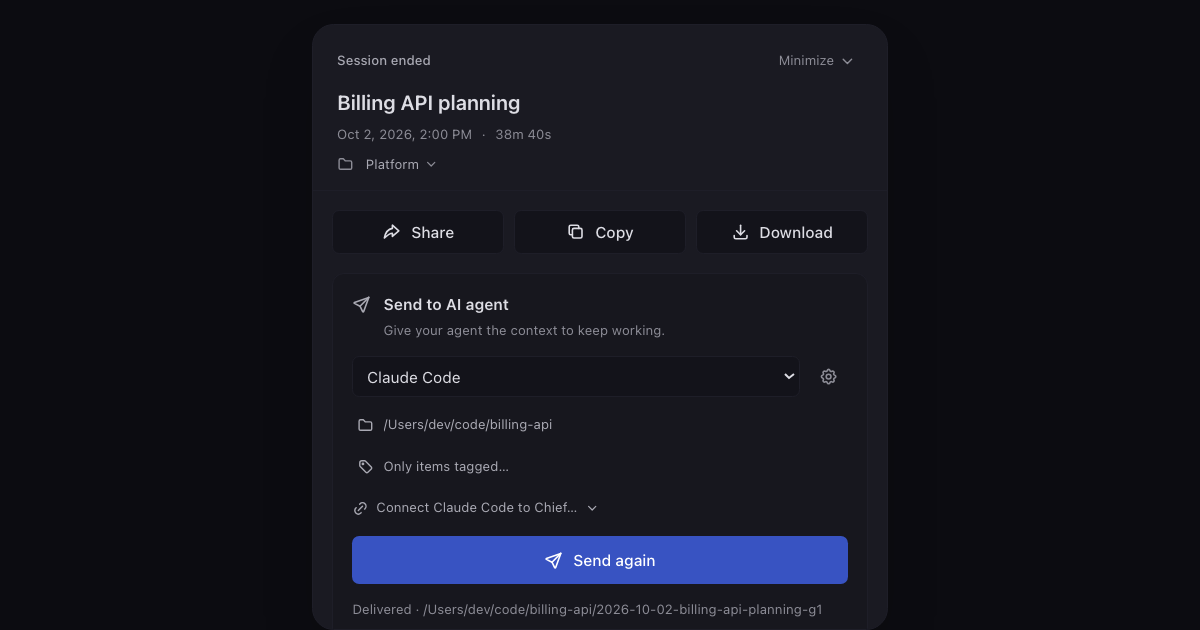
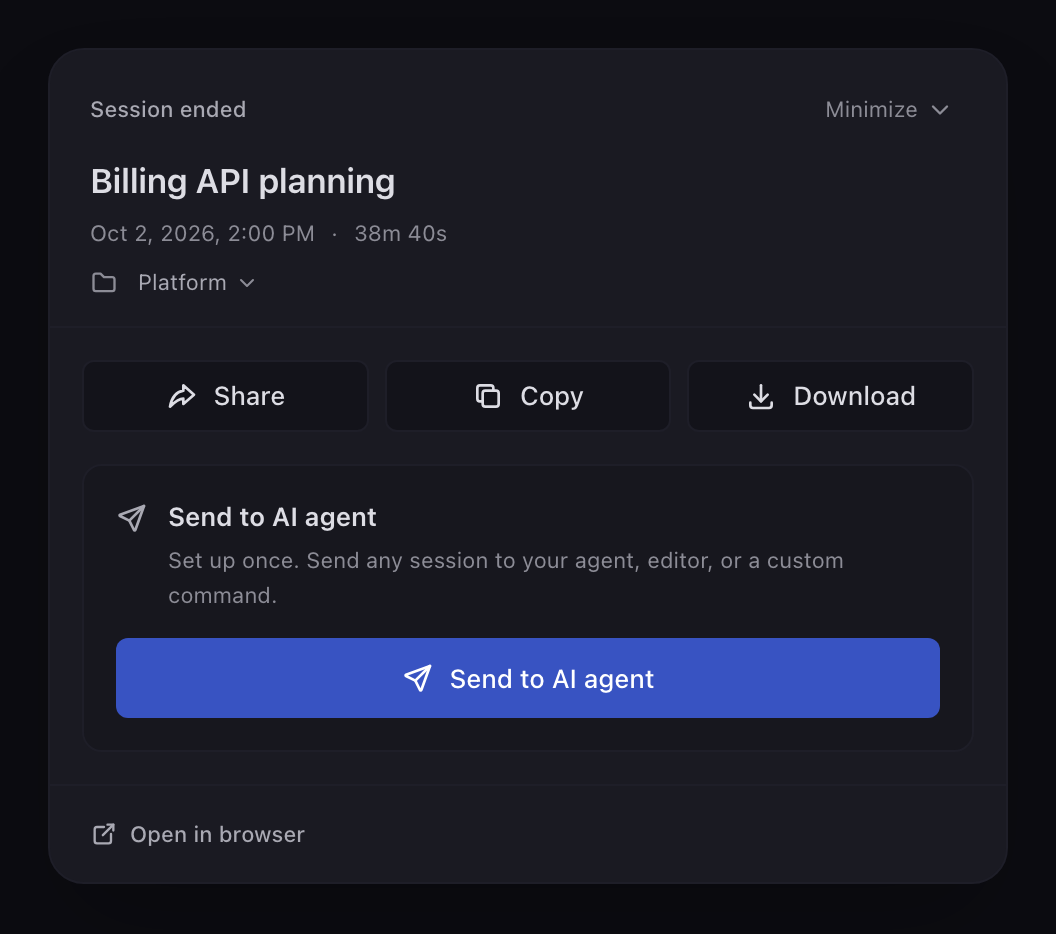
When you stop a session, the Session ended sheet opens with a Send to AI agent card under Share, Copy and Download. The first time, the card reads "Set up once. Send any session to your agent, editor, or a custom command."
2. Pick the tool#
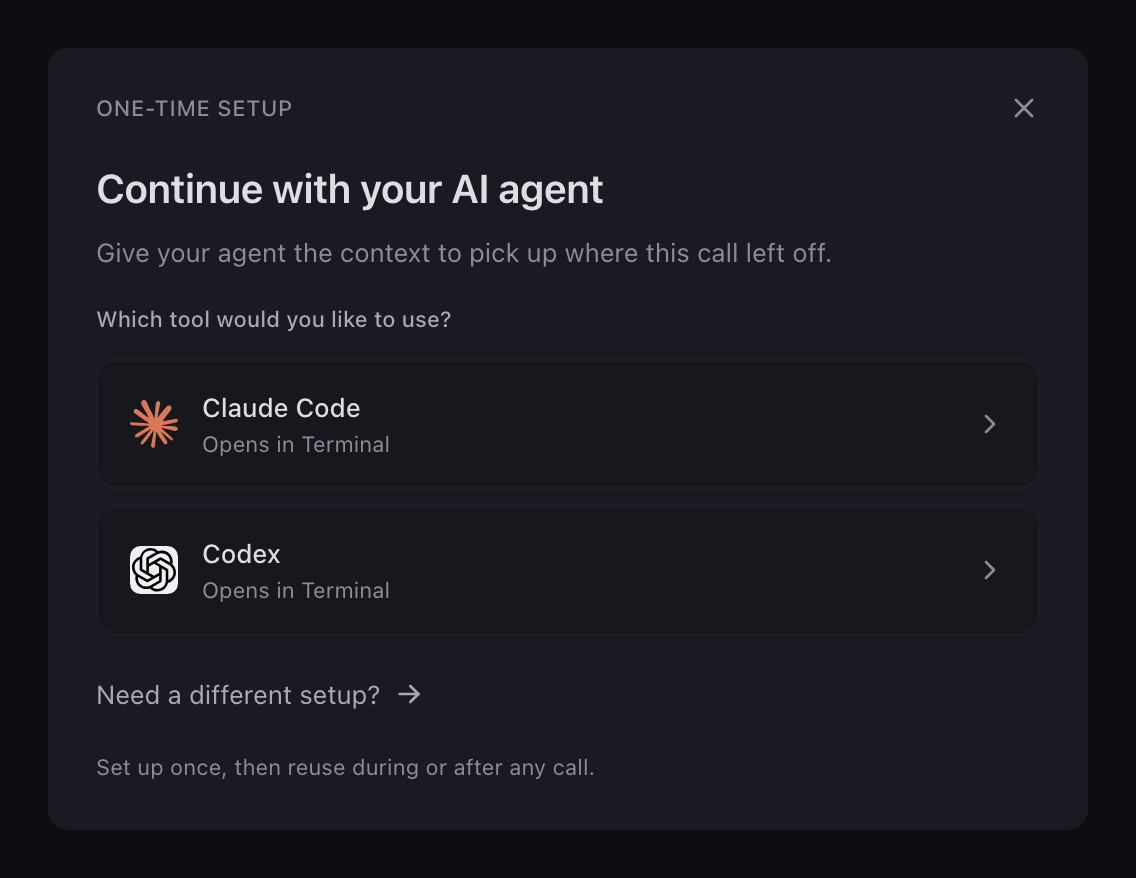
The setup asks "Which tool would you like to use?" Pick Claude Code, and its card notes that it opens in your terminal. Codex works the same way. If you use Cursor and have connected it to Chief, the setup offers a prompt to paste into it.
3. Choose the folder and check what goes in#
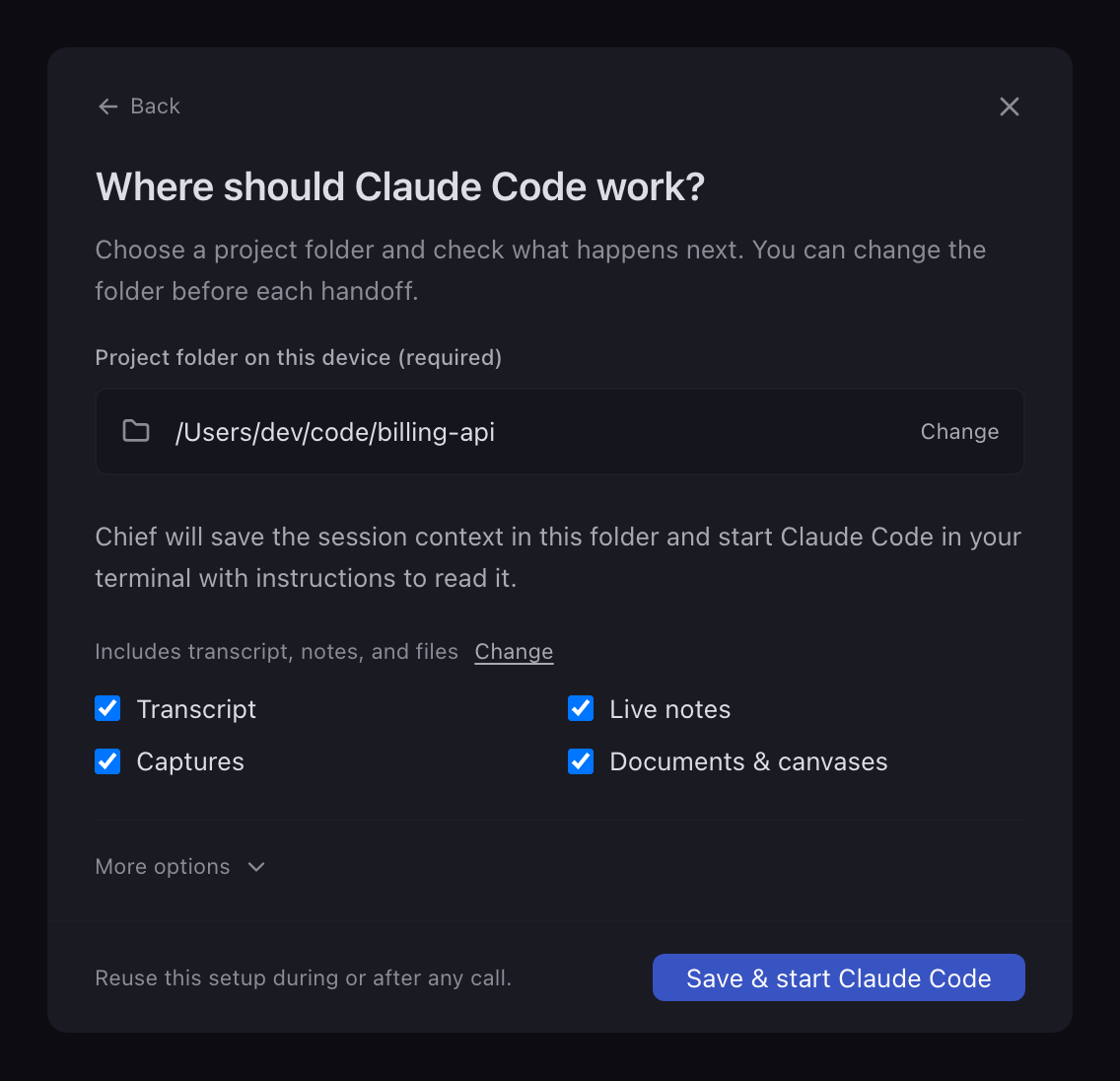
The next screen asks "Where should Claude Code work?" You pick a project folder the first time, and you can change it before any send.
By default it includes the Transcript, Live notes, Captures and Documents & canvases. Click Change to leave some out; at least one has to stay. Under More options you can add Reusable instructions. They go in front of the prompt every time you use that setup. Then click Save & start Claude Code.
4. Claude Code opens and reads the session#
Your terminal opens with Claude Code and this first prompt:
Read the session context at "<folder>/README.md" first, then work in the current project folder.
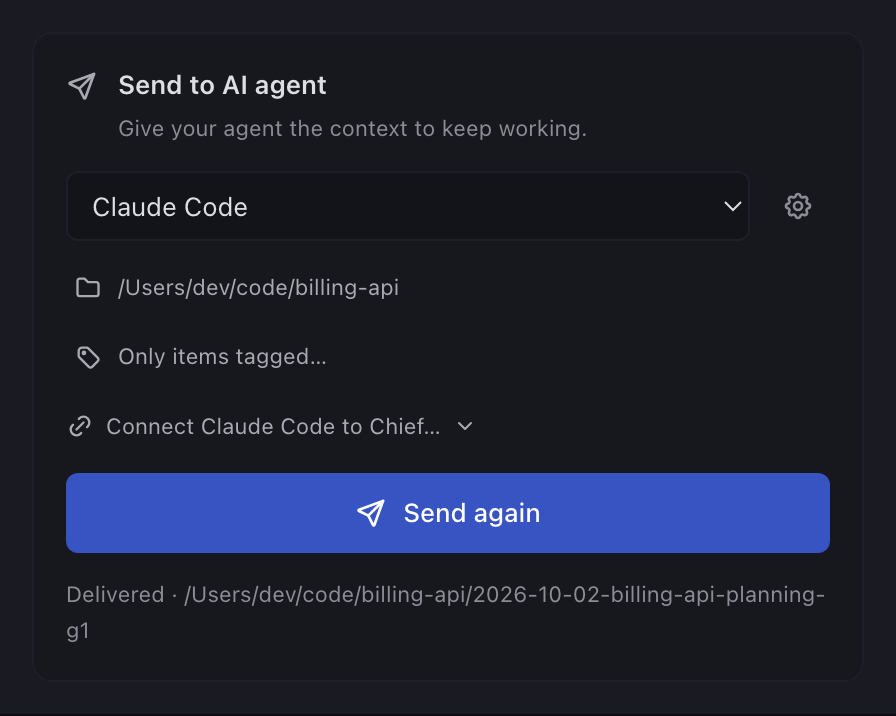
Back in Chief, the card reads "Delivered" with the context folder's path, and its button becomes Send again. Next time, you reuse the same setup, so a send is one click.
Chief writes a dated folder with a README.md that links to the transcript, the notes and any files:
README.md, the entry pointtranscript.mdnotes.mdcaptures/- your documents and canvases
Good uses#
- The decisions, not the small talk. Pick Only items tagged… to send just the items with the tags you choose, such as Decisions. A tagged send leaves the transcript and captures out.
- Mid-call, once the plan is settled. During a call, the same send is on the session bar. Your agent gets the session so far, and Chief keeps recording.
- A decision from last month. Open an older session from the sidebar and you can send it the same way.
Limits#
- It's in the Chief desktop app on macOS and Windows. The web app doesn't have it.
- The agent works in your real project folder, under its own permission settings.
- Chief doesn't commit, push or open a pull request.
- Once the agent is running, Chief doesn't read the conversation back into the session.
- Claude Code or Codex has to be installed on the same machine.
- Each send is the session as it stood when you clicked. After you edit it in Chief, click Send again.
- Someone who joined through a Collaborate link can't send the session; the send needs access to the project.
FAQ#
Does Claude Code get access to my Chief account?
Not from the send. It reads the folder. Connecting Claude Code to Chief is a separate, optional click that lets the agent read and change sessions, memories and project knowledge across your Chief account. It saves an access token in the tool's settings, and you can disconnect it in Settings.Will the meeting end up in my git history?
No. The folder carries its own .gitignore, so it doesn't show up in git status.Should meeting notes go in CLAUDE.md instead?
We'd keep CLAUDE.md for standing rules. Each send writes its own dated folder, so one meeting doesn't become a permanent instruction. Anthropic's memory docs explain what CLAUDE.md is for.I use Cursor. Does this work?
If you use Cursor and have connected it to Chief, the setup offers a prompt to paste into it. For any other tool, you can run your own command, which gets the context's paths as$CHIEF_ENTRY_FILE and $CHIEF_CONTEXT_DIR.More on features and how Chief compares. For why a spec's decisions start in a conversation, read when spec-driven development pays.