To create Linear issues from meetings without leaving the call, connect Linear to Chief once and run the meeting as a Live Session. When the room hits a bug or hands out work, Chief can offer to open the issue, and Add in Linear opens a chat where Chief drafts it. Before anything reaches Linear, a card shows the title, team, assignee and other fields, and you file it when you click Approve, unless you've pre-approved that kind of write.
Key Takeaways
- You say yes twice: once to the offer, once to the issue card.
- The card shows the issue's fields, and you file the issue with Approve, unless you've pre-approved that kind of write.
- Linear shows your workspace's Chief app as the creator, not you.
- Offers run in the desktop app. An organization owner connects Linear in the web app, on Go Pro or higher.
How Chief offers to create Linear issues in a meeting#
During a Live Session, Chief offers pieces of work it could take on and names where each one lands. Chief only offers a Linear issue in a project where Linear is connected. It can also propose a comment on an issue you already have, or a change to it, on the same kind of card. See what else Chief offers during a call.
Chief matches the team, assignee, state, project and labels against your Linear workspace before the card appears, so a name Linear doesn't know fails before you approve. Chief doesn't update the meeting when an issue moves in Linear.
Chief sets an assignee only when it proposes one, and you see it on the card before you approve.
How to create Linear issues from a meeting#
1. Connect Linear once#
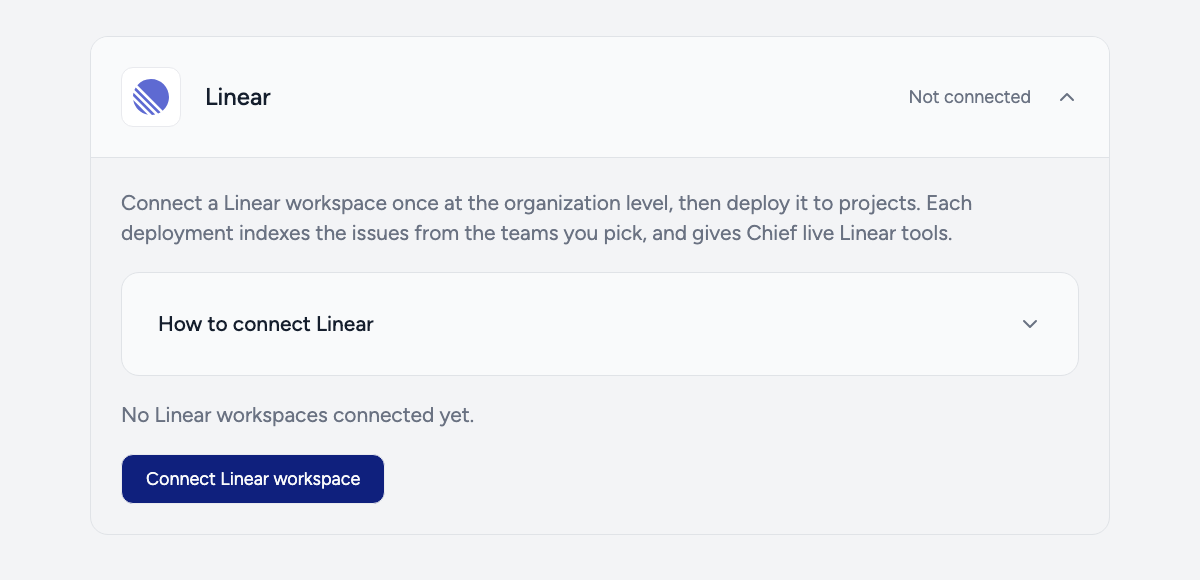
An organization owner connects Linear once, in the Chief web app's organization settings, with "Connect Linear workspace". Then the owner deploys it to the projects that should use it. On the Linear side, setup needs someone who can create applications, which usually means a workspace admin.
2. Run the meeting as a Live Session in that project#
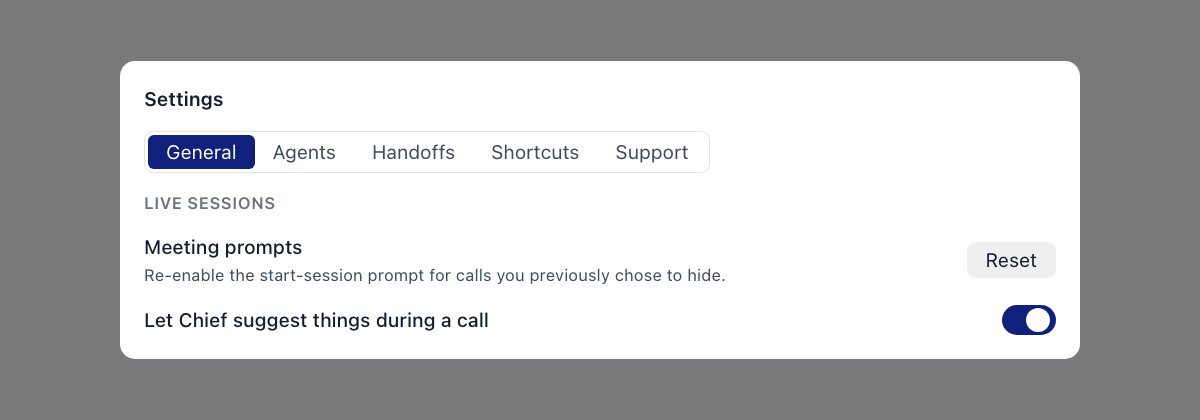
Offers are on by default. You can turn them off in Chief's settings with "Let Chief suggest things during a call". They spend credits for as long as the call runs.
3. Let Chief offer the issue#
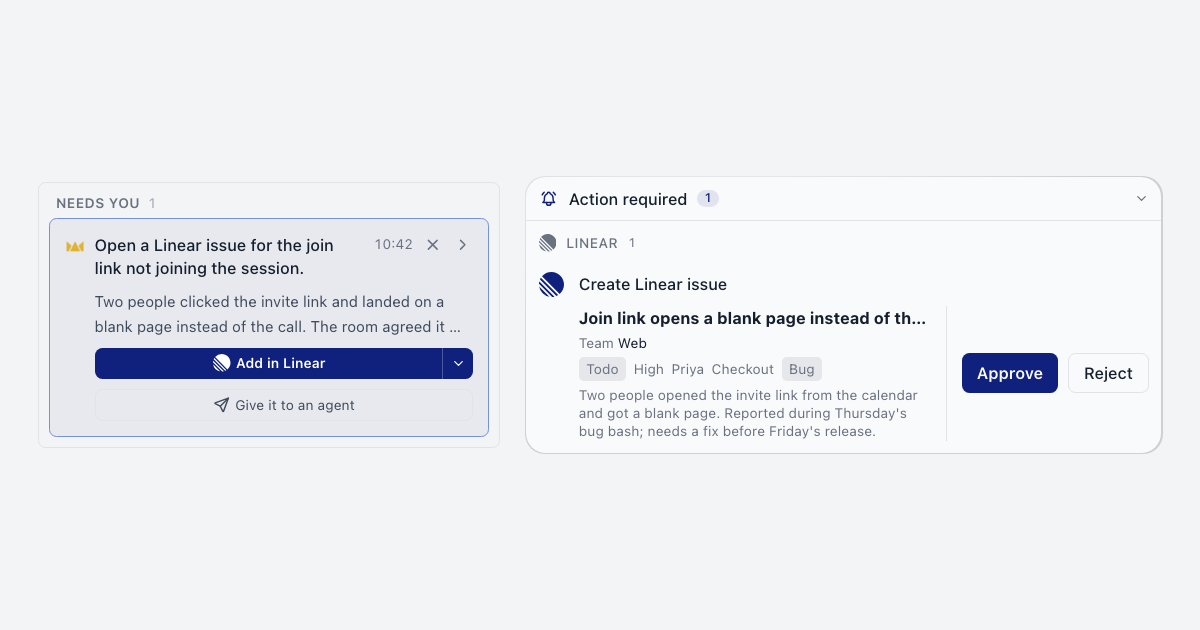
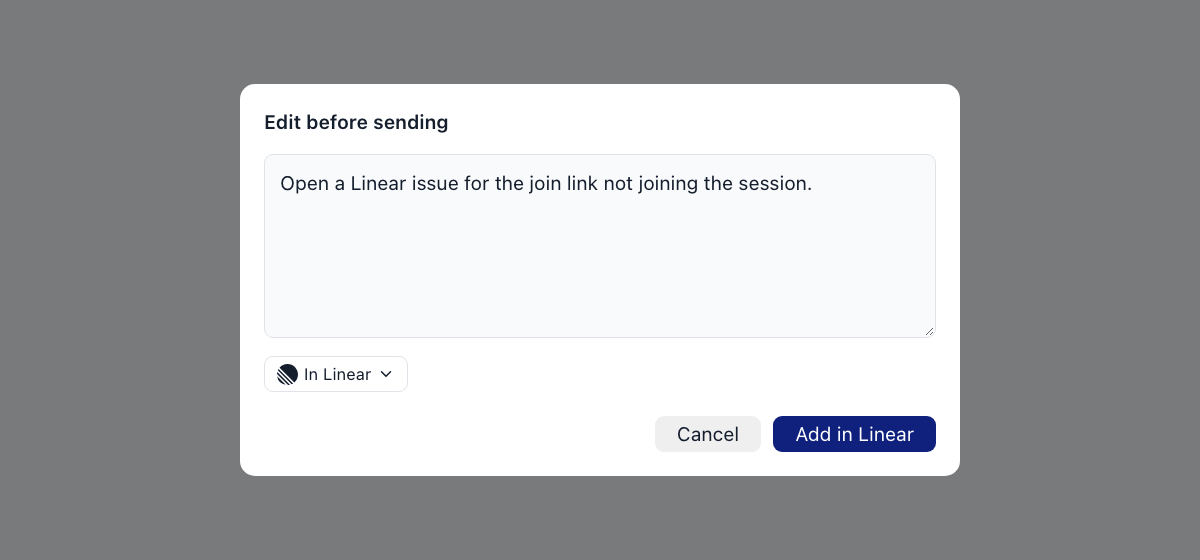
Chief watches what the room says and can offer the moment a line earns it. It's told to favour a bug the room just hit, something it settled, or work handed to a named person. Say the join link fails during a bug bash. The offer can read "Open a Linear issue for the join link not joining the session." It shows up as a row under "Follow-ups" in the Activity panel, marked "In Linear" and "New". Click the row to open it. Add in Linear accepts, Edit lets you reword it first, Not now declines, and Give it to an agent hands it to a coding agent instead.
4. Reword it if you need to, then click Add in Linear#
Edit opens "Edit before sending", where you can reword what Chief should do before you accept. Add in Linear opens a chat where Chief drafts the issue from the call so far. Nothing reaches Linear yet.
5. Check the card#
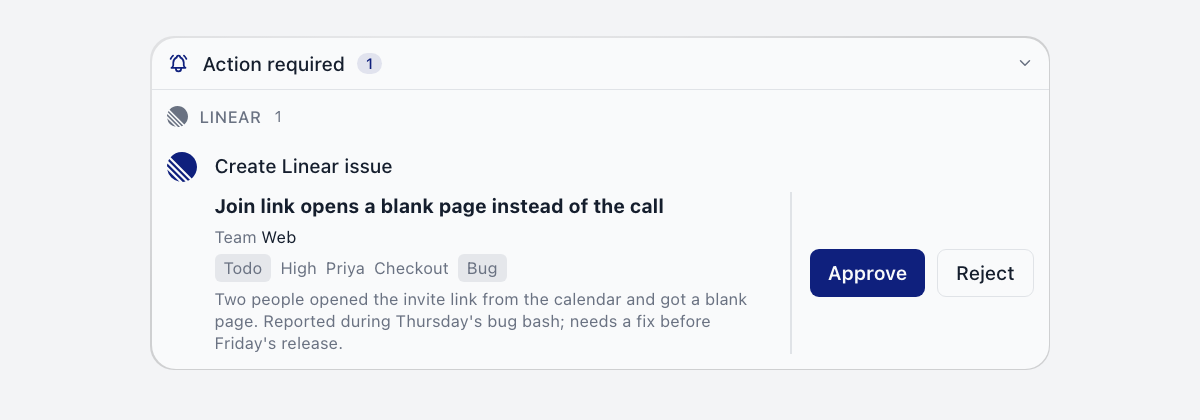
Before anything reaches Linear, a "Create Linear issue" card shows the title, team, state, priority, assignee, project, labels and the start of the description. It sits under "Action required" with Approve and Reject. The issue card has no edit button. If a field is wrong, click Reject and tell Chief in the chat what to change.
6. Approve#
You file the issue when you click Approve, unless you've pre-approved that kind of write. Then the card reads "Issue filed in Linear." with an Open in Linear link. Linear shows the application your workspace created for Chief as the issue's creator, not you.

Good uses#
- Bug bashes and demos, where the room hits defects live.
- An issue that already exists. Chief is told to offer a comment on the existing issue instead of a second one. You confirm which issue in the chat.
- After the call. You can still take an offer nobody answered from the finished session.
- Outside a call. You can ask for the same card in any Chief chat in a project with Linear connected, on the web or desktop.
Limits#
- Offers run in the Chief desktop app for Mac and Windows. Connecting Linear happens in the web app.
- You can reword the offer before you accept, but not the card after.
- Chief may offer on a "we should" said in passing. It becomes a Linear issue only if someone accepts the offer and approves the card.
- Linear writes wait for your approval unless you've pre-approved that kind of write.
- Anyone who can edit the project can accept an offer. Others can still hand it to a coding agent with Give it to an agent.
See how Chief compares with other meeting tools.