Live Session app v1.1.66: Record a call in a quick capture, with who said what
Quick captures now hear your computer as well as your microphone and label who spoke, file your speech as you talk, and add a Start recording button, a capture palette, shortcuts and per-entry links. Fixes stop the capture bar hanging, keep the floating button visible during a Live Session, and reset screen-context sharing after sign-out.
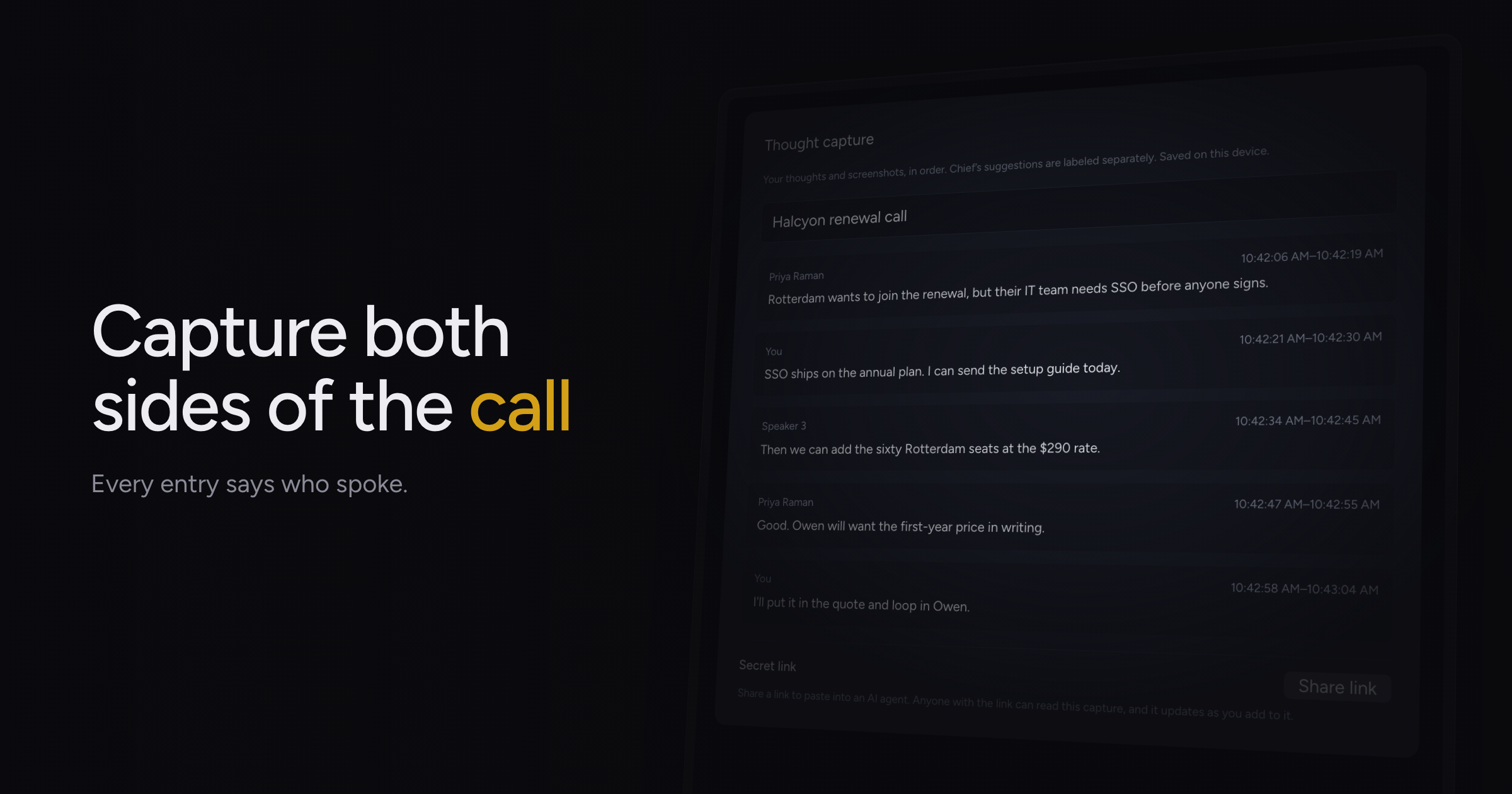
Recording a call into a quick capture only heard your microphone, so the other side of the conversation never made it in, and everything you said arrived as one entry when you stopped.
Today, we're adding your computer's audio and named speakers in quick captures, along with entries filed as you speak, a capture palette, shortcuts and per-entry links, and fixes for the capture bar, the floating button and screen-context sharing after sign-out.
Recorded calls with speakers
A capture you record now hears what your computer plays, like the other side of a call, as well as your microphone. Each entry says who spoke: "You" for your microphone, and "Speaker 2" or a recognized name for anyone else. Their words build up in the timeline as they talk, and the level meter moves for either side.
Chief corrects a label on an entry it already filed when it works out who was speaking. A shared capture's page and its Markdown copy show each speaker's name, so a reader can tell your thoughts from what someone else said.
Turn this off in Settings, under Companion › Captures, with Hear your computer too. On a Mac it needs System Audio access; without it, the recording starts with your microphone only and the bar tells you once. Asking Chief out loud and dictation hear only your microphone and never ask for System Audio.
Starting a Live Session stops a capture recording first. Chief never saves a voice from a capture and keeps no audio on disk.
People Chief does not recognize stay "Speaker N", and you cannot rename a speaker in a capture yet. A lost connection ends the recording but keeps the entries already filed. Recording with your microphone only does not follow a change of input device mid-recording.
Entries filed as you speak
A capture recording now files your speech as separate entries while the microphone is on, after you pause or finish a sentence, rather than as one entry when you stop. Copy, paste, screenshots and the share link all work while you record. A hands-free recording now runs until you go quiet for ten minutes.
An empty capture shows a Start recording button, and the microphone shows a clear Stop state while it records. Press ⌘P to open a searchable capture palette and switch to another capture or start one, and press ⌘1 or ⌘2 to switch between Capture and Ask Chief. Opening another capture switches to it straight away.
Each entry has a link action that copies a share link which opens the capture scrolled to that entry. Copy folder path moved into the capture bar's ⋯ menu.
Settings › Companion › Captures has Copy a link when a recording stops, off by default, which you can also turn on from the capture bar's ⋯ menu. Each time a hands-free recording stops, Chief shares the capture by its secret link and copies the link, replacing your clipboard. Anyone with the link can read the capture.
Settings also has Keep Chief's window closed until I open it, off by default. Without it, Chief now starts with its window open or closed, as you left it. With it on, Chief starts closed every time, and a Live Session you start or stop from a call prompt leaves the window closed too.
Fixes
- The capture bar hung when its field held a long transcript. It stays responsive now.
- The floating button disappeared during a Live Session. It stays visible, and the capture stack sits at the screen edge beside it.
- After you signed out, the next account on that Mac or PC could start its first Live Session sharing screen context from the apps you had chosen. The next account now starts with screen-context sharing off until that person turns it on. If you had it on, turn it on once more after this update.
Update, open a quick capture on your next call and press Start recording. Sharing screen context in the Live Sessions App covers choosing which apps Chief may note.