Live Session app v1.1.64: Read Mac shortcuts as key names, not just symbols
Mac shortcut hints now spell out each key symbol, such as ⌥ Option, and tell you how to change a shortcut. Remote speakers in Windows live sessions are now recognized and named, and on Mac, Help › Report Issue… and Help › What's New… bring Chief's window back before opening.
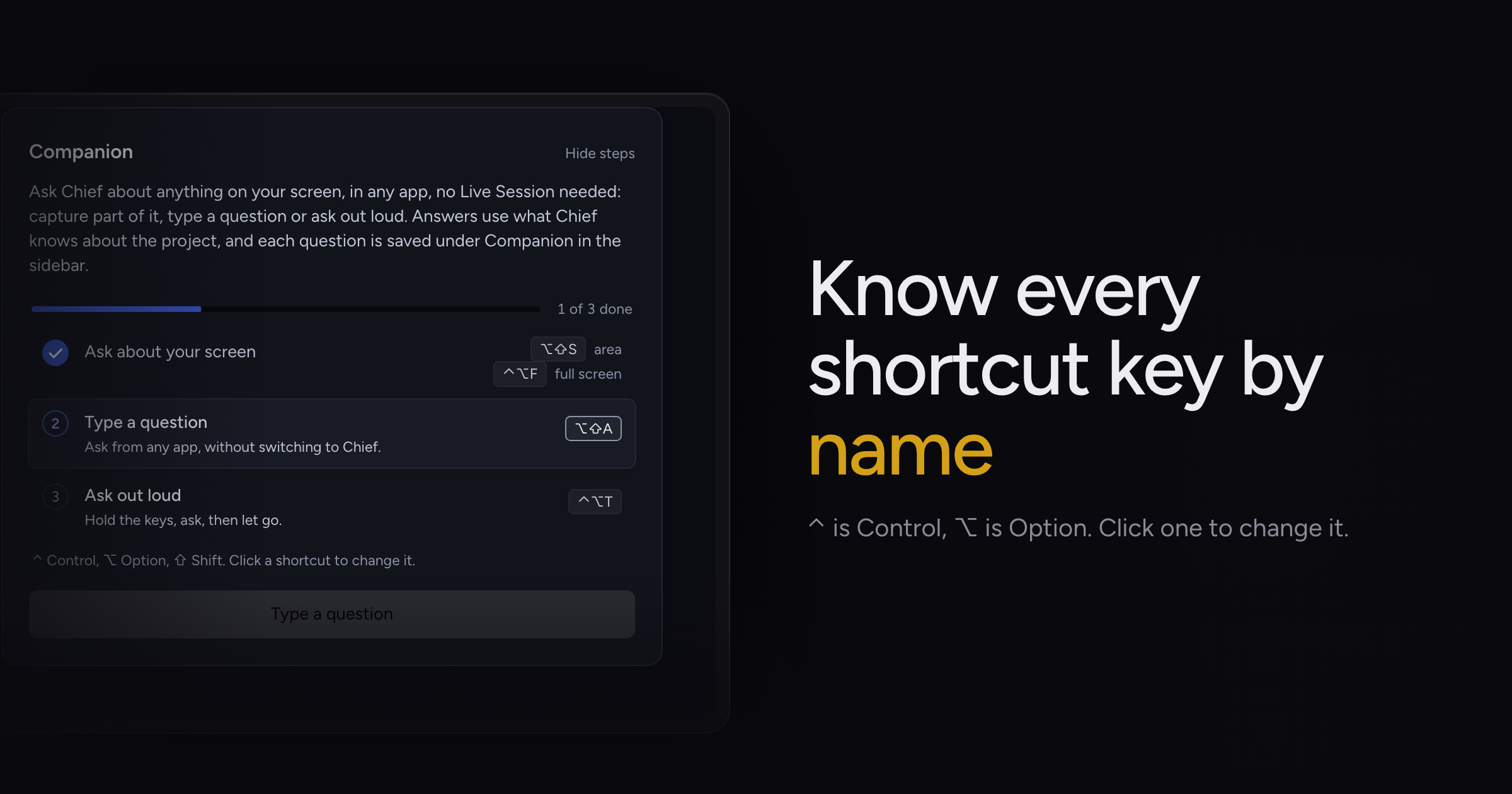
Chief's Mac shortcut hints showed keys as symbols only, so if you did not know ⌃, ⌥ or ⌘ you had to hunt your keyboard for the match, and nothing said how to pick a different combination.
Today, we're adding key names for Mac shortcuts, along with speaker identification on Windows and Help menu items that bring Chief's window back on Mac.
Key names for Mac shortcuts
Wherever Chief lists its shortcuts during setup and in the shortcut list, a line under the symbols now names each one, for example ⌃ Control, ⌥ Option. Hover a shortcut to see it spelled out, such as Control-Option-S, with a note that you can click it to change it.
The setup steps end with "Click a shortcut to change it," and the introduction tells you that you can change them in Settings › Shortcuts. In the Shortcuts tab, clicking a row to record shows how to press the keys together, which modifier keys to include, and that Esc cancels.
Windows labels already use words, so Windows shows no extra line of key names.
Fixes
- On Windows, Chief could not identify speakers, so remote speakers in a live session went unnamed. Chief now recognizes and names them.
- On Mac, Help › Report Issue… and Help › What's New… showed nothing if you had closed or minimized Chief's window. They now bring the window back and open the dialog.
Update to 1.1.64 and open Settings › Shortcuts to see your keys by name. Changing appearance, controls, zoom & shortcuts covers the shortcut settings.