Live Session app v1.1.62: Start Companion from a floating button on your screen
A floating Companion button, an optional hold-one-key shortcut and multi-screenshot questions make Companion easier to reach; meeting project search starts a Live Session in another organization's project; Notes and the transcript follow the newest entry. Fixes bring Talk to me to Live Session chats, restore Ask Chief for members joining by share link, and fix the macOS hidden-controls message.
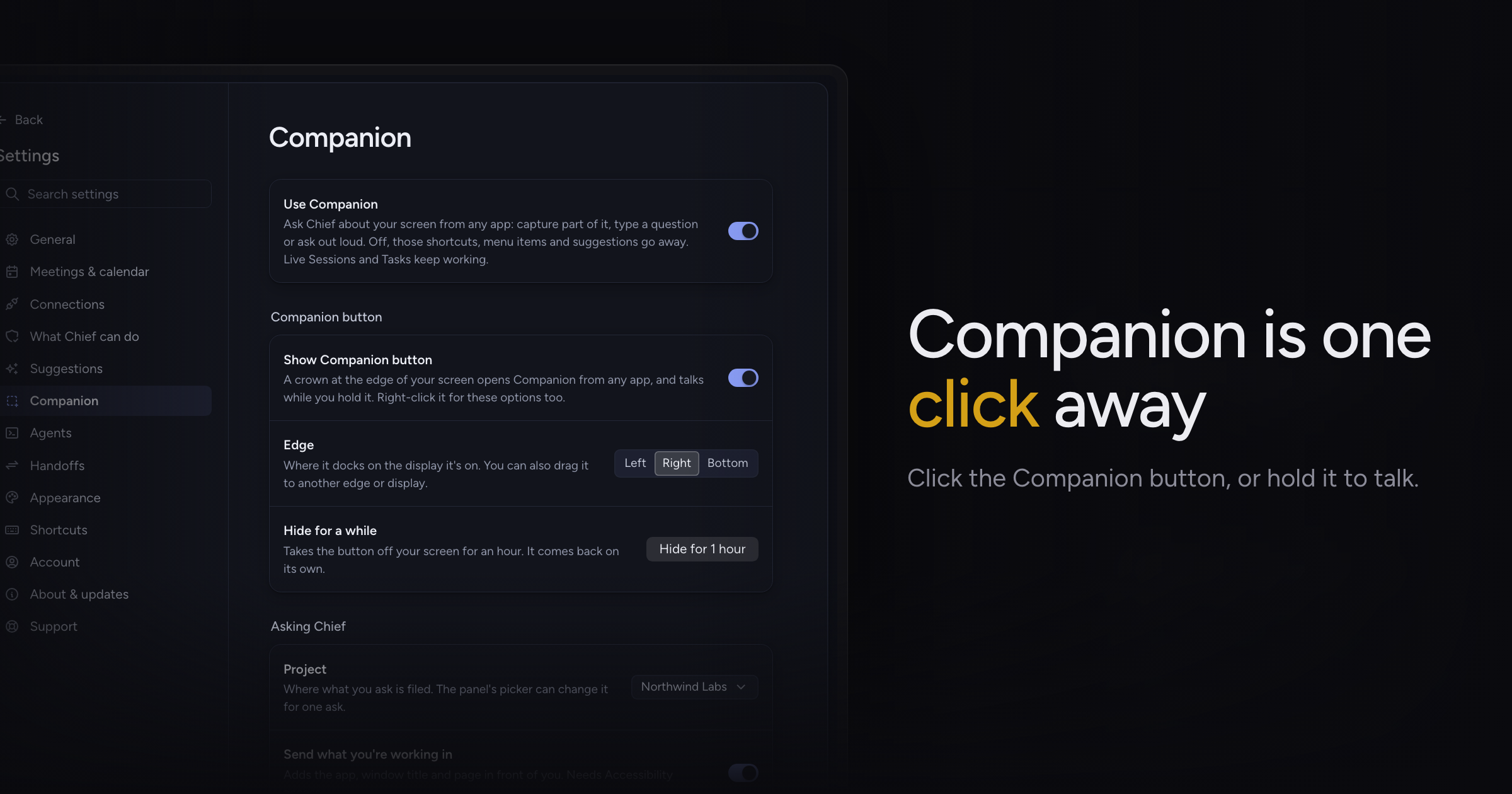
Companion could answer questions about anything on your screen, but the only way to reach it was a modifier-key combination, and the Home card opened on a sample chart that looked like real data.
Today, we're adding the Companion button, along with Live Sessions in another organization's project from a meeting's search, and Notes and a transcript that follow the newest entry.
Floating Companion button
A Companion button now docks to the edge of your screen and is on by default. Click it for Companion's actions, or hold it to ask out loud.
Right-click it, or go to Settings › Companion, to move it, hide it for an hour or turn it off. An Undo card appears when you hide it, and Show Companion Button in the menu bar menu brings it back.
You can also turn on Hold one key to talk and ask out loud by holding a single key: Right Option, Right Command or fn on macOS, Right Ctrl on Windows. On macOS, Chief asks for Input Monitoring only when you pick a key, and the key does not start while another app is taking a password.
Screenshots you take in a row now join one question, so you can ask about several screens at once, up to five files per question. A screenshot joins a panel that is still counting down to send or waiting under Decide later, never one that already has an answer. The first time screenshots join, a tip points you to Screenshots taken in a row in Settings › Companion, which turns this off.
Answered panels have a camera button to add a screenshot to your follow-up, and you can drag the screenshot stack to any corner of the screen or choose one in Settings. The quick bar is now called Type a question everywhere, including the menu bar menu.
Companion's card on Home explains what it does in plain words, the first-run setup introduces it, and Settings › Shortcuts groups shortcuts by feature.
Live Sessions across organizations
Searching a calendar meeting's project picker now lists your projects from other organizations too, dimmed and marked Other organization. A meeting cannot move to another organization, so clicking one of those projects tells you why and offers Start a Live Session there, which records the meeting in that project under the meeting's name. The picker on the next-meeting card, the agenda rows and the macOS notch card all work this way.
The button appears only while you can still join the meeting. Projects where you are a Reader stay out of the list, and if a Live Session is already recording, Chief tells you to stop it first.
Jump to latest
During a Live Session, Notes now scrolls to each new point as Chief files it, and the transcript keeps following new lines. Scroll up to read something older and the panel stays put, showing a New notes or Jump to latest pill that takes you back to the newest entry.
Notes holds still and shows the pill instead while you are typing, have text selected, have a line card open, or have the catch-up for missed notes open.
Fixes
- Chief grayed out Talk to me in the chat beside a past Live Session. It now works in Live Session chats, and turns off with a tooltip while a Live Session is using your microphone. The buttons under the chat box show icons only in a narrow side panel, so they fit on one row.
- A project member who joined a Live Session through a share link got session-only access without the Ask Chief bar. Project owners and collaborators now keep Ask Chief and full member access.
- On macOS, hiding the Live Session controls told you to bring them back from the menu bar icon, which has no such item. The message now points you to Settings, where you pick Full or Minimal.
Update to 1.1.62 and click the Companion button at the edge of your screen to ask your first question. Changing appearance, controls, zoom & shortcuts covers the settings involved.