Live Session app v1.1.61: Choose which cards pop up, plus a Windows session bar
Settings now lets you pick which kinds of card pop up in the notch or floating bar, and Windows gets a floating session bar with controls, cards and an Ask field while Chief's window stays out of sight. The Summary opens rows, any tag allows checking off, offers show tool logos, search moves to the sidebar, summaries run longer, copies gain Tags, By time stays editable, and old builds must update. Fixes cover Activity, the card strip, documents, tag filters and more.
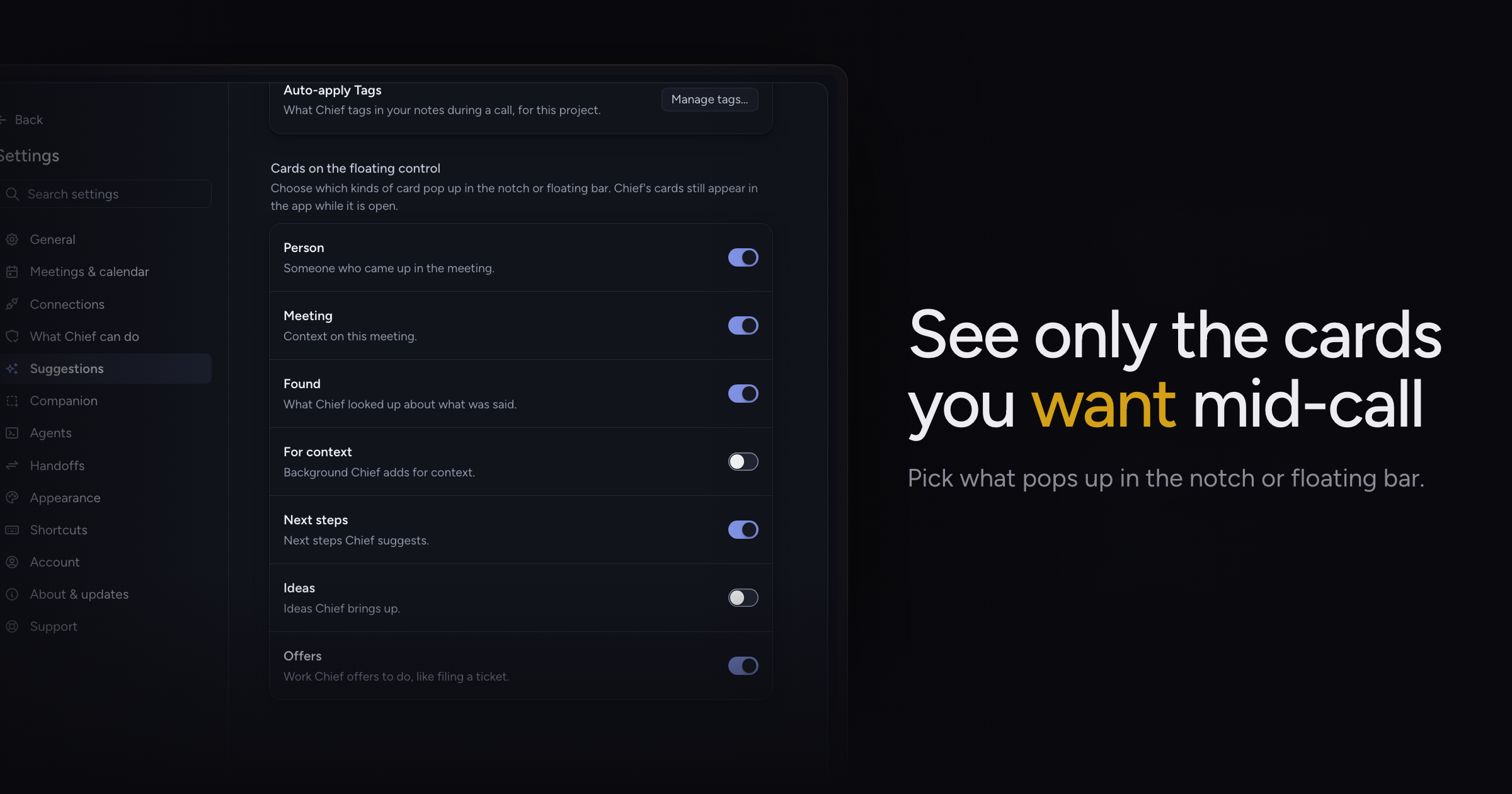
Every kind of card Chief made during a call popped up in the notch or floating bar, even the kinds you didn't want mid-meeting. On Windows, hiding Chief's window left you with no session controls at all, so pausing, sharing or stopping meant bringing Chief back to the front.
Today, we're adding a choice of which cards pop up and the floating session bar on Windows, along with Summary rows and tags you can check off, sidebar search, fuller summaries, a Tags section in copies, an editable By time view in Notes, and required updates.
Cards you choose to see
Settings has a Cards on the floating control group with a switch for each kind of card: Person, Meeting, Found, For context, Next steps, Ideas and Offers. Kinds you switch off stop popping up in the notch or floating bar and leave its counts. Chief's window and Activity still show them.
Offer cards now show the logo of the tool they go to, such as Linear, Gmail or Slack, in its brand color, in the floating bar and in Activity.
Floating session bar on Windows
While a session runs and you hide, minimize or cover Chief's window, or move it to another desktop, a bar appears above the taskbar. It shows the live dot, clock and credits, with Pause, screenshot and markup, Share, Stop and a button that opens Chief, plus avatars for the people on the call. A red count on the open button tells you Chief has unread Activity.
Chief's suggestions, answers and Join cards open above the bar, and an Ask button opens a field where Enter sends and Shift+Enter adds a line. Drag image files onto the bar or a card to add them to the transcript. Drag the bar by its background to move it.
The bar stays out of screenshots, screen shares and recordings. If you hide the session controls, Show session controls in the Chief icon's menu in the notification area brings them back.
Summary rows and checkable tags
The Live Session Summary lists your offers, tags and intelligence cards as rows you open, with Open all and Close all, and each count takes you to its row. On the Tags page you can go back to the Live Session you came from, start a New tag, drag tags into a new order, and use Expand all from the header row.
Turn on Allow checking off for any tag in the tag editor, and its items get a checkbox on the Summary's tag rows and on the Tags page. To-dos has it on by default. Collaborators can now tick to-dos during and after a session, and ticks stay in sync with the web app.
On the Tags page, a tick someone else makes shows after you open the page again.
Search in the sidebar
The search button sits in the sidebar header and opens the command palette, which now finds what was said in the session, with the speaker and time. Ask Chief in search sends your question instead of filling the chat box. The search field, Share arrow and Find icon left the top strip.
The Chat button on the session bar shows only while the right panel stays shut, the composers no longer show a project picker, and the agent chip looks the same in every composer.
Fuller summaries and tagged copies
The live summary runs a few sentences while the meeting goes on, and the summary after it ends runs one or two paragraphs.
Copying or downloading a Live Session adds a Tags section above the full transcript, listing each tag's notes with the part of the transcript they came from. It appears when you select both Notes and Transcript.
Editable By time in Notes
By time on the Notes tab now only reorders your notes, so tags, to-do boxes and untimed lines stay. To add, join or move lines, switch to By topic. The Chief and People legend is gone, and the add button reads "Add To-dos" or "Add People and Orgs".
On macOS, closing Chief's window moves it to the background, out of the Dock, and ⌘W now closes it. A new General section in Settings holds Quit Chief when its window closes, Launch at login and the menu bar option.
Asking Chief to edit a canvas frame with open comments starts sooner.
A build that falls too far behind shows a screen asking you to install the update, retry, download manually or quit, and the update notice names the date it becomes required. Chief never interrupts a recording: you get a banner, and the update installs when the session ends.
Fixes
- Activity moved cards while your pointer rested on the list. Cards now hold still and a bar shows how many are new. An Ideas card's quote opens the transcript, and chats no longer show the "Needs you" strip.
- The card strip above the session bar showed and counted cards you turned down, and offers Chief withdrew or replaced. It now leaves them out, opens a card in one click and shows two-line titles.
- A card answered by a teammate or taken back by Chief stayed under your pointer with buttons that did nothing. The next card now takes its place.
- On macOS, a new notch card stayed open after you moved away. It now folds as soon as your pointer leaves.
- Every collaborator's cursor in a document read "You", and a pasted image showed "Image unavailable" to others. Cursors show each name and pasted images appear. The send button reads Add to transcript and canvases get a ⋯ menu.
- A selected Notes tag pill could disappear into "+N" and showed counts larger than the notes it showed. It stays in view, filled with the tag's color, with a matching count.
- Tag views had no sort control and a stray live marker. They show "N results" with a sort button and the same tab style as Notes.
- On macOS, Open Keyboard Shortcuts landed on the Keyboard pane. It now opens the Keyboard Shortcuts list.
- On macOS, Never show this again on the calendar join card let the card return. It now turns off Offer to join scheduled meetings, where Settings can turn it back on.
- Someone who joined from two devices appeared twice in the comment mention picker. They now appear once.
- Replying to Chief in a Slack thread someone else started told you that you had no access. Chief now adds you to the conversation.
Update to 1.1.61 and hide Chief during your next Windows session to see the bar. Changing appearance, controls, zoom & shortcuts covers the session controls.