Live Session app v1.1.58: Live Sessions, redesigned
Chief gets a redesign with one Live Session screen, follow-ups on the Summary and a new Tags page, plus sharing one part of a Live Session, paging through stacked cards, stopping a cloud chat, new projects from the Mac meeting card, and automatic updates and more Mac features on Windows. Fixes show other people's chats during a call, explain who can move a Live Session, bring Chief forward from links on Windows, label cards that answer a question to one person, and speed up copy and export.
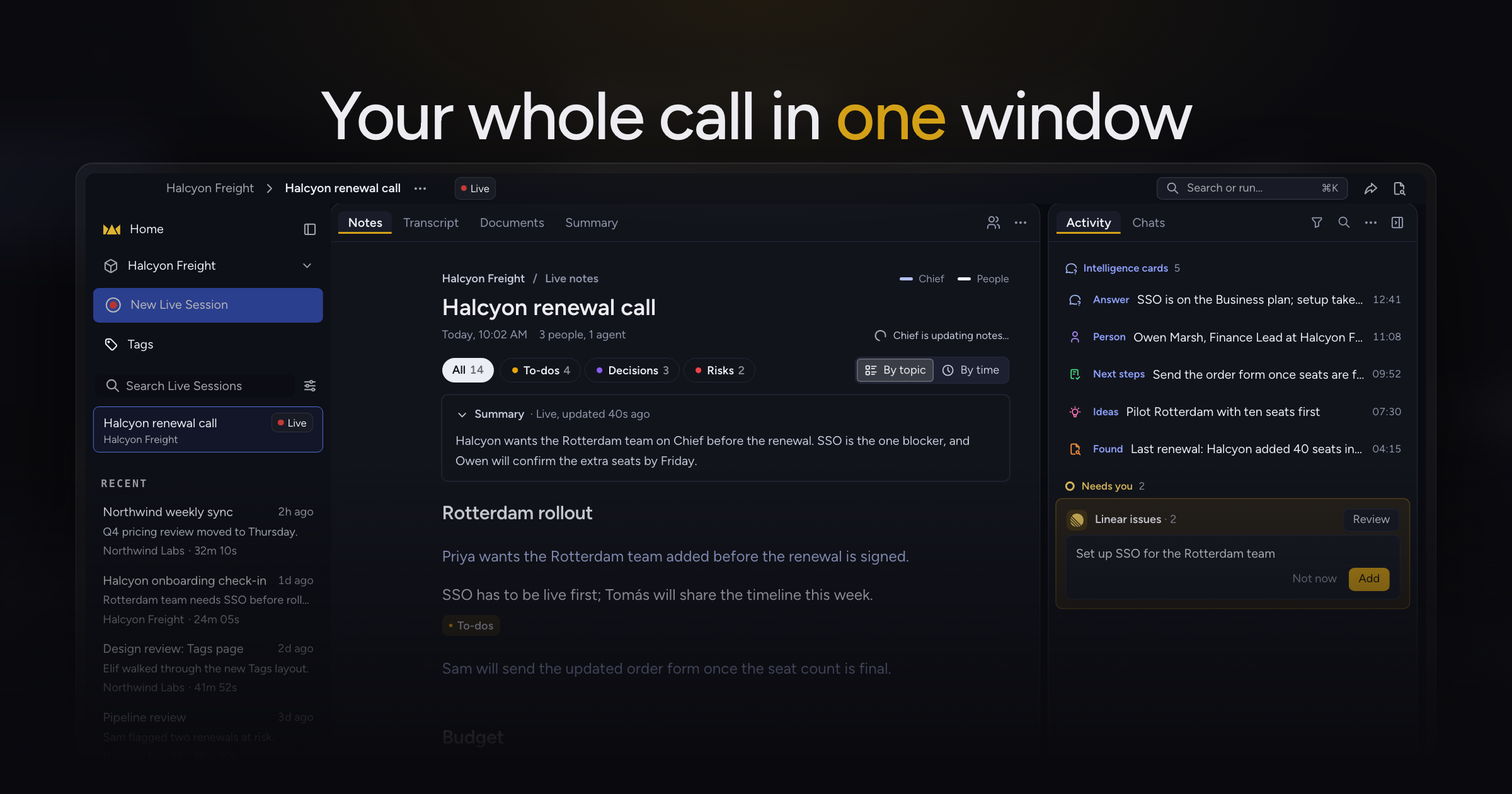
Chief put a lot in front of you during a call: three panels side by side, follow-ups scattered across them, and no single place to catch up once the meeting ended.
Today, we're shipping the redesigned Chief app, along with sharing a whole Live Session or one part of it, paging through stacked intelligence cards, stopping a cloud chat, New Project on the meeting card, automatic updates on Windows, and more of the Mac experience on Windows.
One Live Session screen
A Live Session is now one screen with four tabs: Notes, Transcript, Documents and Summary, reachable with ⌘1 to ⌘4. The session controls sit in one bar at the bottom, and nothing covers your notes during a call.
The Summary fills in during the meeting and is where you land when it ends. It holds one list of follow-ups, your to-dos and Chief's suggestions grouped by tool, each showing whether it is waiting, adding, needs your OK, done with a link to what Chief created, or failed. Done and Not now items fold away at the bottom, and you can undo Not now for a few seconds.
Notes opens with the meeting's summary on top, marked Live or Final. Switch between By topic and By time to read Notes in the order things were said, and step away to find what's new marked when you come back.
Click Show in Notes on a Summary row to jump to that line, then Back to Summary or Esc to return to the same spot.
The Activity panel on the right groups Chief's work into Intelligence cards, Needs you and Done. In Settings, a sidebar with search holds your connected tools and lets you choose, per action, Do it or Ask me; chats follow those choices on the web and in Chief alike. Home has one Start button and a project picker on every upcoming meeting.
A new Tags page shows each tag across your recent Live Sessions in a project, with points grouped under the call they came from and repeats folded together. Pick This week, Earlier or All, search when a project has many tags, and find tags with no points folded under Unused. Expand all and Collapse all open or close every call at once.
The Summary lists the tags each call used, and clicking one opens it on the Tags page.
Partial share links
Under What to share, pick the whole Live Session, or only its Notes, Transcript, Notes and documents, To-dos or Decisions. The link opens a web page laid out like the app.
Activity and Tasks stay private.
Paging through intelligence cards
Stacked cards in the floating session pill now show +N more as a button, and you can page back and forth with the arrows, arrow keys or dots, newest card first. A darker edge behind the front card shows more are waiting.
On a Mac, the notch folds a moment after your cursor leaves an open card, and an answer or suggestion card you leave alone folds sooner on its own. Prompts that need an answer stay open.
The notch's own +N more is not clickable yet.
Stopping a cloud chat
A chat with Chief now shows a Stop button while it answers. The conversation stays open, so you can ask again.
New projects from meeting cards
Open the project picker on the card for a detected meeting and the first row reads New Project. Type a name in the search and, if no project matches it exactly, the picker offers Create. Either one opens the New project dialog in the Chief window with your typed name filled in.
While you fill in the dialog, the card steps off the notch and waits. Press Create and the card comes back with your new project picked and its full time to answer. Press Cancel and the card closes, and you can start or file the meeting from the Chief window you are already in.
The picker on both notch cards is now a filled chip labeled "Project:", so it reads as something you can click, and it appears only when you have two or more projects. The same "Project:" label replaces "Save to", "Saving to" and "Filed in" on Home's start row, the transcript import dialog, the next-meeting card and chats, and the controls that change a project say Change project.
The card for a calendar meeting has no New Project row. Its picker moves the meeting to a project you already have. Automatic meeting detection covers the card.
More of Chief on Windows
Chief on Windows now installs new versions while you're away, and never during a Live Session. Turn it on with the Automatically update switch.
Windows asks you to approve each update. While that prompt waits, Start tells you to approve or decline it first. Declining stops Chief asking again until a newer version arrives, and without admin rights you cannot approve it.
With more than one display connected, you can limit screen context to one of them, named after the monitor. Chief remembers your choice, and an app sitting mostly on another display shares only its name.
The Copy button on a transcript image now puts the image on the clipboard to paste into other apps. Ctrl+\ opens and closes the sidebar, and the sidebar button's tooltip shows the shortcut.
Fixes
- In a Live Session, chats other people started showed up only after you reopened the session. They now appear in the list as they start, with their titles.
- Moving a finished Live Session in a project you did not own failed with a message to check your connection. Chief now says only project owners can move Live Sessions between projects.
- On Windows, opening a Live Session link while Chief was running left its window behind your browser. Chief now comes to the front.
- Cards answering a question put to one person in the call showed no asked line in Activity and the transcript. They now read "You asked" with the question.
- Copying, exporting or sending a Live Session with several documents to an agent waited on each document in turn. It now finishes sooner.
Update to 1.1.58 and start your next Live Session from Home. Using the Live Sessions App covers the basics.