Live Session app v1.1.49: Get live insights that build on earlier cards
Live insights arrive sooner and grow on the same card with checked follow-ups; the Join card steps through upcoming calls; the calendar meeting card moves a meeting to another project; the canvas right-click menu gains Copy, Paste and style actions; and Settings opens from the sidebar account menu. Fixes keep the notch up behind other apps, clear withdrawn host invitations, correct dark-mode offer cards, and link the release-notes image.
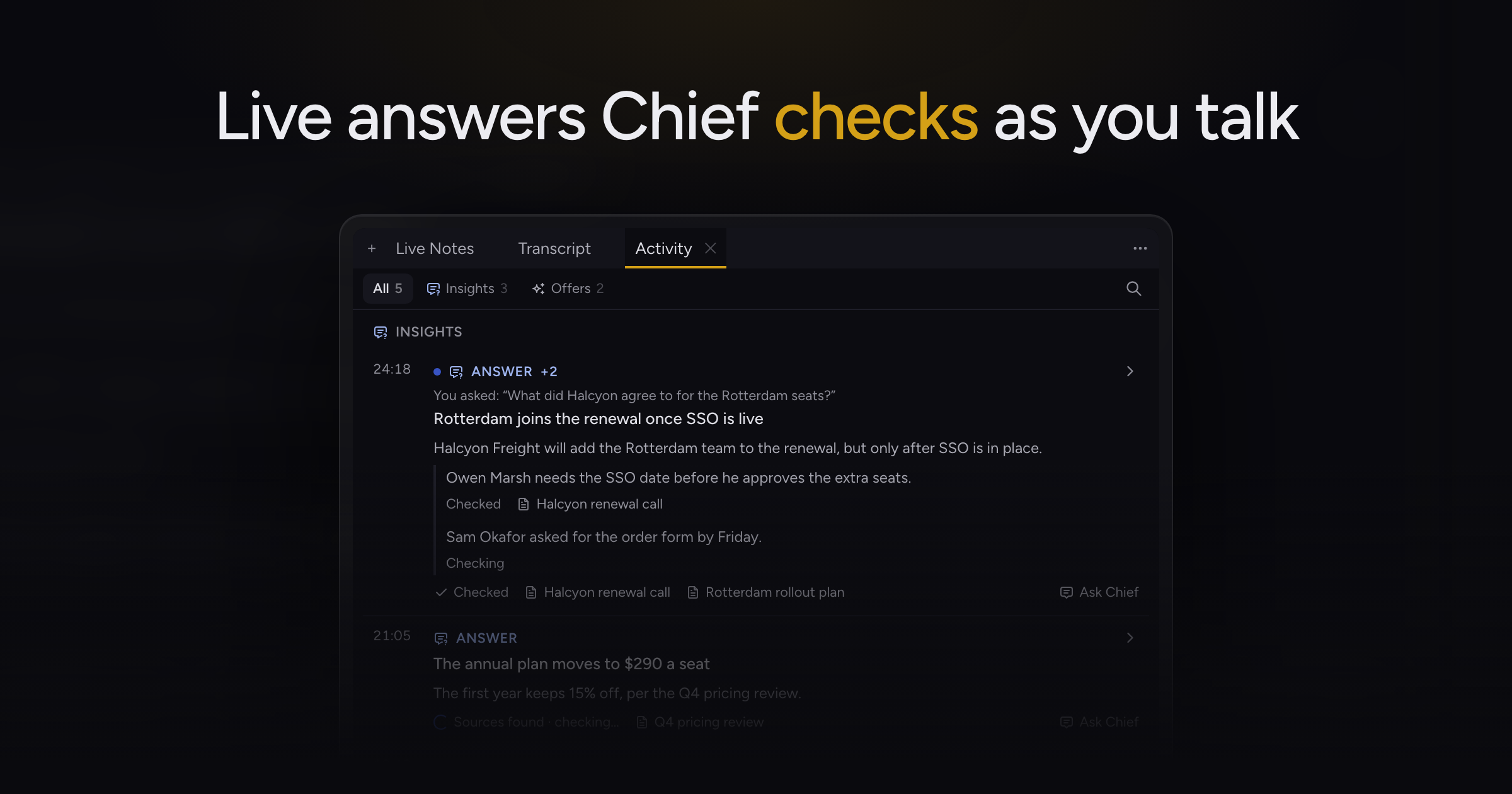
During a live session, Chief's cards could take a while to appear, and once Chief learned more it had no good way to add to what it had already said.
Today, we're making progressive live insights, along with arrows on the Join card, a project picker on the calendar meeting card, clipboard actions in the canvas right-click menu, and Settings in the sidebar account menu.
Progressive live insights
Chief now puts up suggestions and factual answers sooner while people talk, then checks them and adds follow-ups to the same card as it learns more. It can also research business contacts that come up and take a new angle on a topic it already covered.
Each card and each added line shows where its check stands: Preliminary or Sources found while Chief is checking, then Checked, Corrected or Couldn't verify. Background research stays quiet, and Chief spaces out popups so they interrupt you less.
Chief can now add more contributions and cards per hour during a session, and it budgets more credits for them. Actual charges can exceed the estimate.
Arrows on the Join card
With several calls coming up, the Join card in the notch shows arrows and dots so you can step through them. Stepping snoozes nothing, and the card stays on the call you chose while its start time counts down.
Not now snoozes only the call on screen and moves to the next one. With one call left, the arrows and dots go away. Shortly before a call starts, the calendar meeting card takes it over.
Meeting project picker
The calendar meeting card in the notch now lets you pick the project that holds the meeting. Choosing another project moves the meeting there and sends future meetings in its calendar series there too, and the main window shows the new project. Start session starts the live session in the project you picked.
The picker lists projects in the meeting's own organization and leaves out projects where you are a Reader. If a move fails, the card says why.
The card shows the project without a picker once the meeting has started, when you are a guest or a Reader of its project, or when you are a Collaborator on a meeting someone else created.
Canvas right-click clipboard
Right-click the canvas and the menu now offers Copy, Paste, Duplicate, Copy style and Paste style in one section, with their shortcuts. Paste places objects where you right-clicked. The Copy style and Paste style buttons in the toolbar have new icons, so they no longer look like Duplicate.
Copy places canvas content you can paste back into a canvas. It does not put an image on the clipboard for other apps.
Settings in the account menu
The account menu at the bottom of the sidebar now starts with Settings, above Open Dashboard, on Windows and macOS. Windows has no app menu, so this gives you a way into Settings from inside the window.
Fixes
- The notch used to hide whenever any part of the Chief window showed, so a sliver of Chief behind another app took away your session controls and cards. The notch now stays up unless the Chief window is in view.
- Accepting a host invitation that the host had withdrawn showed raw error text and left the invitation card up. The card now closes and Chief says the invitation is no longer available.
- Offer cards in the floating session bar had a blue wash in dark mode, and their labels were hard to read. The cards sit on the bar's own surface, and their labels and icons use a lighter blue you can read.
- Clicking the image in the release notes dialog did nothing, and a dark box appeared around the first section link. The image now opens the full changelog entry, and the box is gone.
Update to 1.1.49 and start a live session to watch Chief's cards build as the call goes on. Using the Live Sessions App covers the rest of a session.