Live Session app v1.1.46: Pull the session control down into a floating bar
Pull Chief's compact session control down from the top of your Mac and place the floating bar wherever you want it. Chat now matches the app and its pickers are searchable. Tool approvals gain Always allow and a Tool permissions page, live sessions share from one Share flow, Not now offers move out of the way, and this release includes reliability fixes.
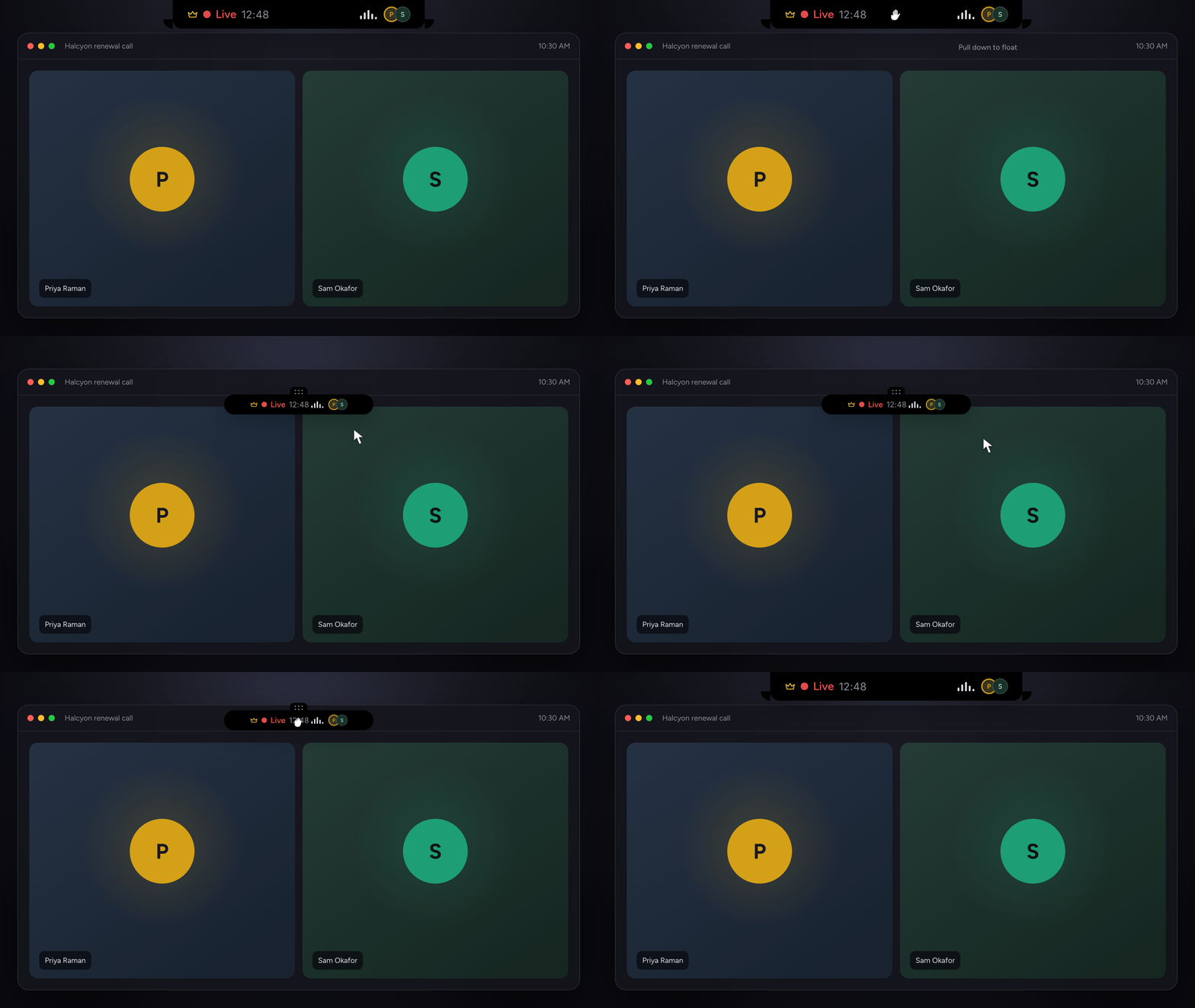
During a live session, Chief stays in a compact control at the top center of your Mac. Keeping it somewhere else used to mean changing its placement in Settings.
Now you can move it directly. This release also brings Always allow to tool approvals, one Share flow for live sessions, Not now offers that move out of the way, and a set of reliability fixes.
Move Chief anywhere
Pull the compact session control down from the top of your screen. It becomes a floating bar that follows your pointer and stays where you leave it.
To attach it to the top again, drag the floating bar to the top center of your screen. Chief remembers the position you choose, including after a restart.
When the bar is floating, a small dotted handle shows where to grab it. Hover over the control and your pointer changes to an open hand.
Chat now looks and works the same in both positions. The addressee, Voice and Project pickers open as searchable lists with sections, descriptions and a check mark beside your current choice. You can use them while your meeting app stays in front.
Moving the session control and using the floating bar are available on macOS only.
Always allow for tools
Approval cards for Chief's tool actions now offer Always allow next to Approve and Deny, labeled for the kind of action, such as Always allow Notion edits or Always allow channel messages. Choosing it approves the current action and lets later actions of that kind run without a card. The card then confirms, for example, that Notion edits now run without asking, and later actions show Ran automatically.
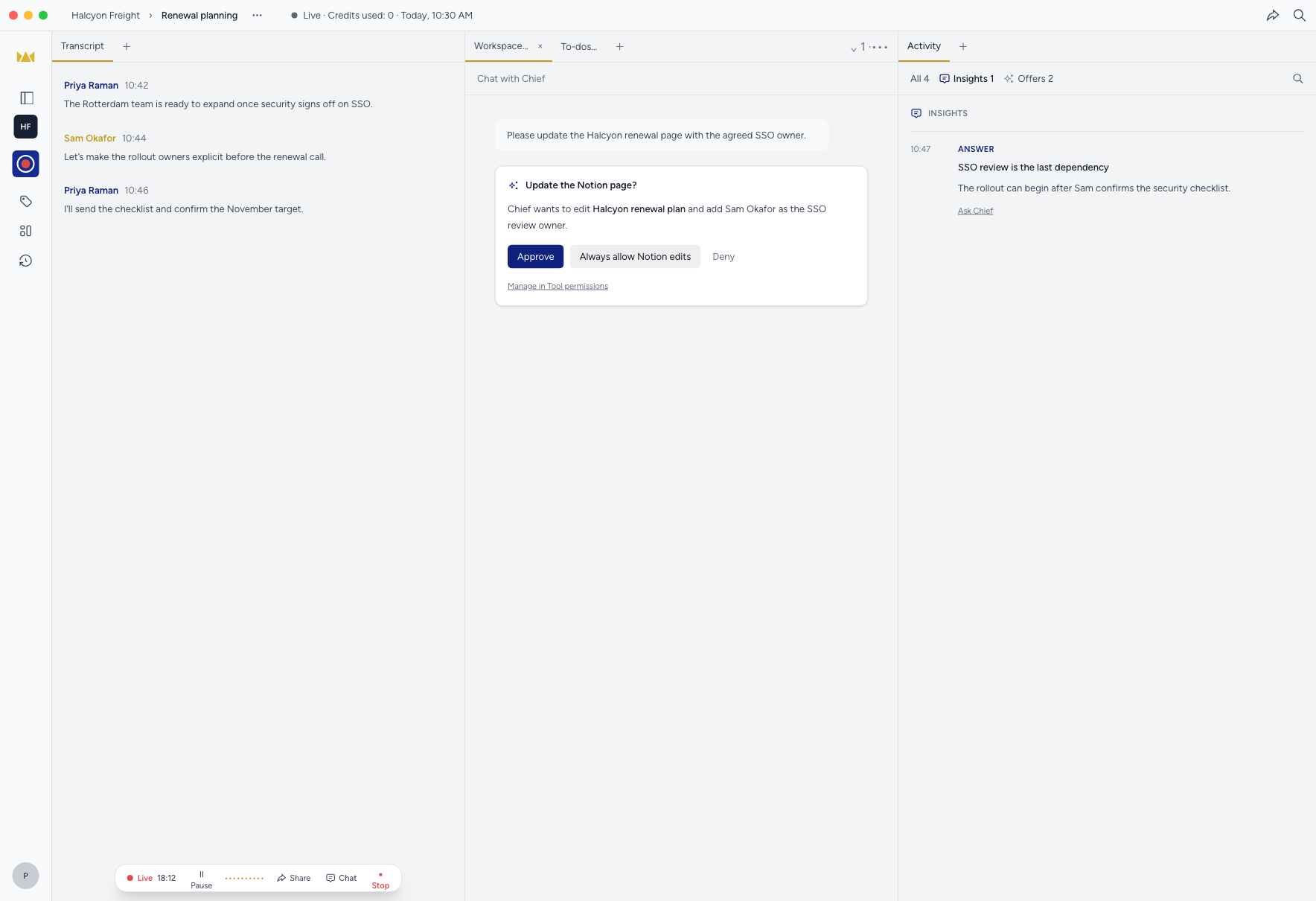
The card links to Tool permissions in settings, which lists every permission you have saved so you can turn any of them off. Your choices apply on web, Slack and the desktop app.
Always allow does not appear for deletes, in chats an Action runs, or for anyone other than the person Chief proposed the action to. Cards waiting from before this update do not get the button. Managing integration permissions & connection status covers approvals.
One Share flow
The bottom session control, the People panel and the compact control at the top of your Mac all say Share with the same icon. Each opens a popover titled Share session with a Copy link button. The Session actions menu next to the session name now has a Share entry too, shown to the host while the session is live.
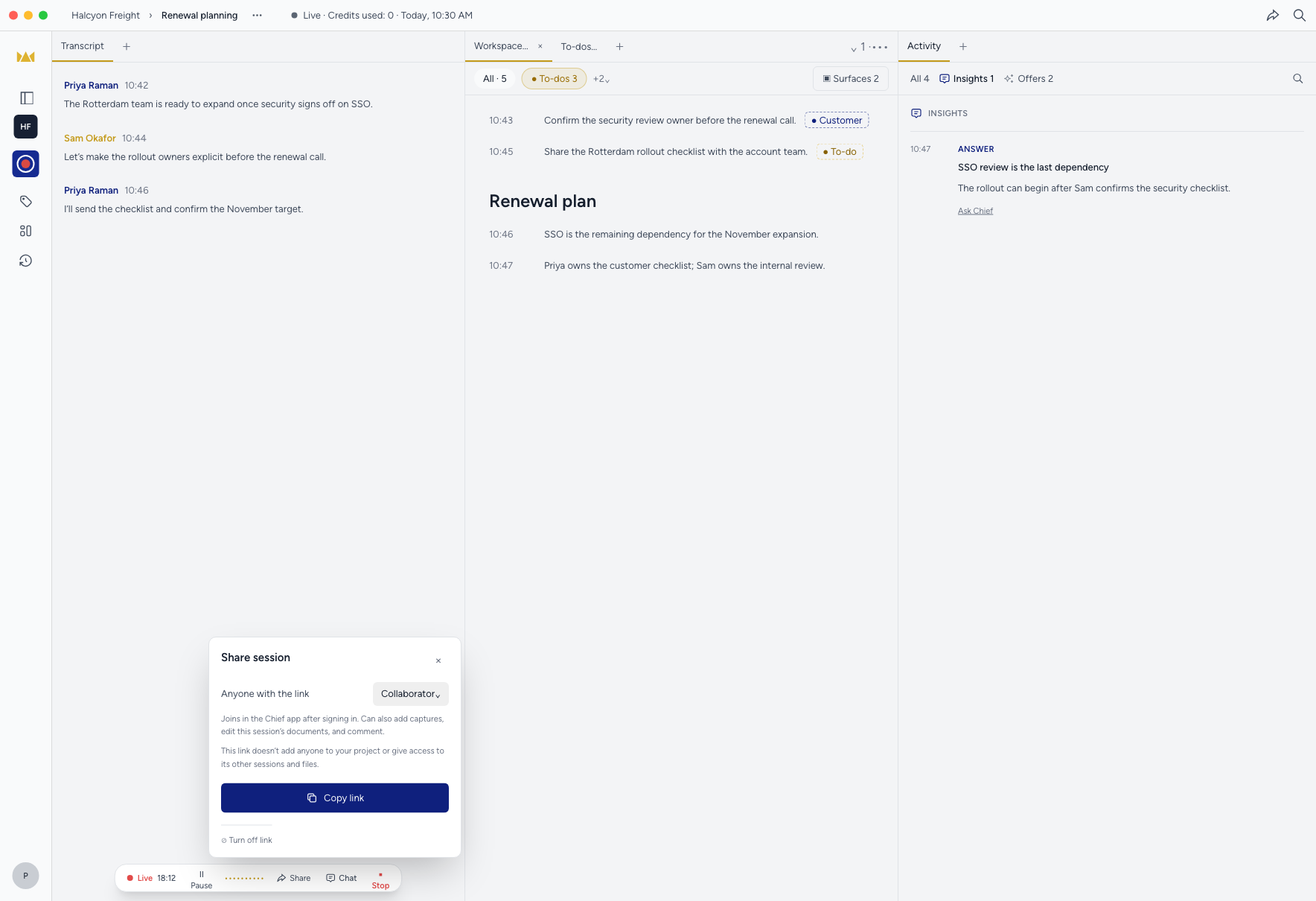
The popover spells out each role. Reader opens in a browser with no account and can follow the transcript and summary live without changing anything. Collaborator joins in the Chief app after signing in and can also add captures, edit this session's documents and comment.
From the compact session control, the menu reads Share this live session with one item, Copy link. It copies the current link, or creates a Collaborator link if none exists, and flashes Link copied. The old Copy join link option is gone.
A session link does not add anyone to your project or give access to its other sessions and files. Guests and unpaired devices see Link unavailable. Sharing and joining a Live Session covers the roles.
Not now moves down
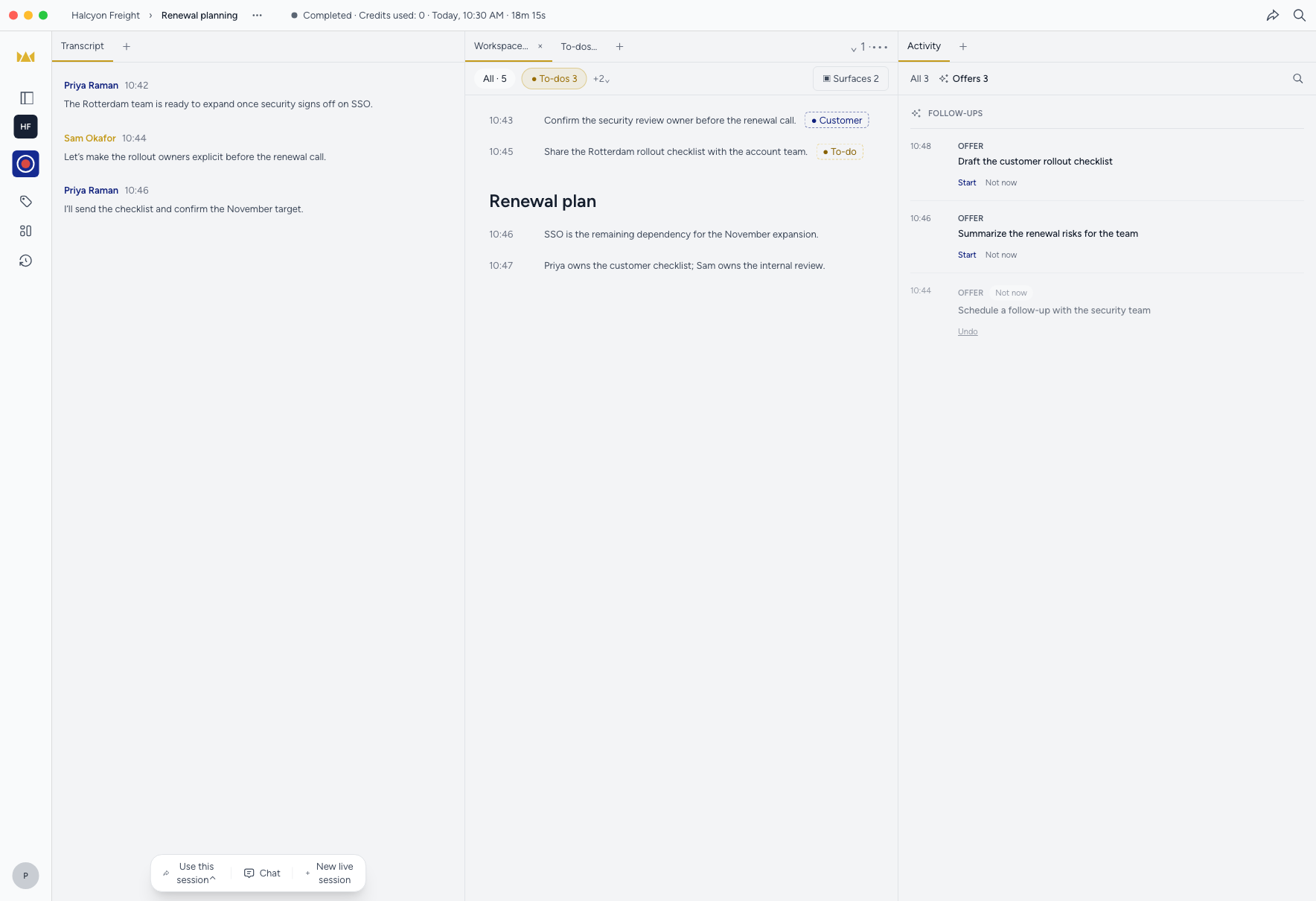
An offer you answered with Not now used to keep its place among active offers in the Follow-ups list of the Activity panel. It now moves below every offer still in play, and returns to its place if you undo the answer. Offers Chief withdraws stay where they are.
Fixes
- Live offers had turned off for many people who never chose that after they opened an offer card's menu from the compact session control. This update turns live offers back on once, and any choice you make afterward stays.
- A chat that failed showed Couldn't finish with No preview available on its activity card. The card now says the chat failed.
- The Chief joins menu on Home agenda rows looked like it decided whether Chief joins a meeting, which it never did. Agenda rows no longer carry the menu.
- Finished live sessions showed a horizontal scrollbar on the transcript column that scrolled into empty space. The transcript column now fits its width with no sideways scrollbar.
- Chief could crash when your system blocked site data, and some synced items could fail to load. Chief now falls back to your system language and loads those items.
Update to 1.1.46 and pull the compact session control down to place the floating bar. Changing appearance, controls, zoom & shortcuts covers session controls.