Live Session app v1.1.45: See your calendar meetings and join them in one click
Your calendar meetings show up on Home as live sessions you can prepare and join in one click; pick Full, Minimal or Hidden session controls and put suggestions off with Not now; Chief installs updates while you're away; session names autofill and save on Enter or click-away; the join prompt names the host; and you can download a session without a local AI agent. Fixes cover chat follow-ups, canvas web page revisions, offers in Activity, the New live session cursor and highlight Copy.
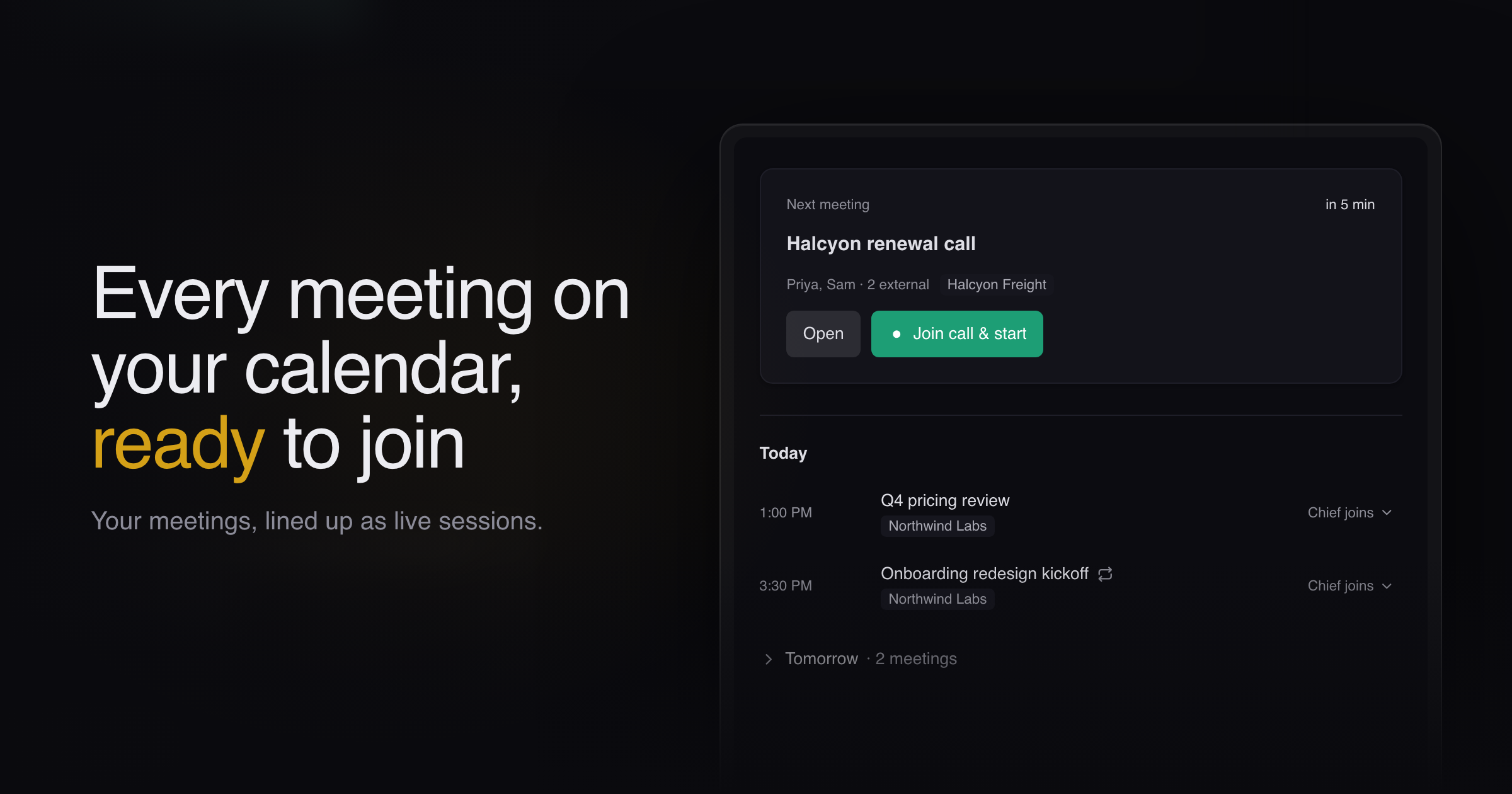
Starting Chief for a meeting was a step you took by hand, often once the call had already begun. During a call, Chief's suggestions sat on screen until you accepted or declined them.
Today, we're adding calendar meetings in Chief, along with Full, Minimal and Hidden session controls, automatic updates, autofilled session names, the host's name on the join prompt, and a way to send a session without a local AI agent.
Your meetings on Home
Turn on calendar scheduling from the card on Home, and Home leads with your Next meeting and lists the rest of today, with later days a click away. Chief schedules each meeting from your Google Calendar as a live session and files it in a project you can change from the meeting.
Join call & start session opens the call and starts its session in one step. Open a meeting before it starts to see its notes, where you can write an agenda or ask Chief to draft one from the invite.
The link menu on a meeting sets who its invite link is for: your workspace and everyone on the invite, anyone with the link as a read-only viewer, or an extra collaborator link you share by hand.
A card in the notch offers to join each scheduled meeting as it comes up, with Join meeting & start session. Turn it off under Offer to join scheduled meetings in Settings, or pick when it appears, from At start to 10 minutes before. Don't prompt for this meeting in the card's menu stops the prompt for that meeting.
An admin has to connect your organization's Google Workspace first. Until then, Home shows a card to set it up or to ask your admin. The Google Workspace admin guide covers that step.
The card in the notch appears only on macOS, and skipping a meeting applies to this Mac alone.
Choosing session controls
Settings has a new Suggestions section with Manage Floating Control, where you pick Full, Minimal or Hidden. Full shows offers as they arrive. Minimal shows only a gold count of new suggestions in the notch or the floating bar, and a click opens them.
Hidden takes the session controls off the screen, and Show session controls in the Chief menu in the menu bar brings them back. The same three choices appear in the ⋯ menu on the notch.
Pick Not now on a suggestion to put it off without declining it. It waits in the gold count until you click to bring it back.
In the app, the chat opens under the floating controls when there is room below them, and the Chat button now closes it too. The ask area in the notch now matches the app's chat, and you can send an ask to an agent from it. Card buttons say where they take you.
Hidden keeps the prompt to start a Live Session and the card for a session you can join. Changing appearance, controls, zoom & shortcuts covers the display settings.
Automatic updates while away
Chief now installs new versions while you're away from it, and the option is on by default. Turn it off with Automatically update in the account menu, or on the new You're all set screen at the end of onboarding.
Chief waits to install until no Live Session is running or starting, you have no past session open, no answer is still arriving, and the window has sat in the background for a while. Installing an update by hand during a Live Session now asks first: choose Keep recording, or end the session and install. Chief saves the session, and you can resume it later.
An unsent draft is lost when Chief restarts to update. The option does not appear on Windows, which already installs updates when you quit.
Autofilled session names
As you rename a session, Chief fills in a matching name from past sessions in the same project, and Tab accepts it. A rename now saves when you press Enter or click outside the field, in every rename field in Chief.
Enter also submits the diagnostics contact email and the Harness and variable fields when you send a session to an agent.
Chief draws suggestions from your recent sessions, so it can miss an older matching name.
Host on join prompts
The prompt that offers to join a Live Session already running for your call now reads "Hosted by" with the host's name. Chief leaves the line out when you are the host or the host has no name on their account.
The card for a scheduled session and the Join list on the home screen do not show the host yet.
Sending without local agents
The Send to AI agent setup now offers a No setup needed option. Download session (.zip) saves the transcript, notes and files to upload to any AI chat, and Ask Chief opens the chat during a live session.
If Claude Code or Codex cannot start on your computer, Send asks for another destination rather than failing, and a saved setup for that tool becomes a context folder.
The download is not offered for a send narrowed to a tag view. Sending a Live Session to an AI agent covers the destinations.
Fixes
- A follow-up sent at the end of a long answer stayed below the visible chat, and you had to scroll down. Your message and Chief's reply now come into view.
- Asking Chief to revise a web page on the canvas could fail with an "unknown field" error. The revision now goes through.
- On other participants' devices, an accepted offer in Activity read "Conversation unavailable here." It now says who accepted it and that its conversation isn't on this device.
- With a session open or paused, the New live session button showed a busy cursor. It now shows a not-allowed cursor and tells you to stop or leave the current session first.
- Copy in the highlight popover showed "Couldn't copy that" and copied nothing. It now copies the selected text and shows Copied.
Update to 1.1.45 and turn on calendar scheduling from Home to see your meetings there. Pairing & managing devices · Updating the app covers updates.