Live Session app v1.1.42: Let Chief offer and draft Auto-apply Tags for you
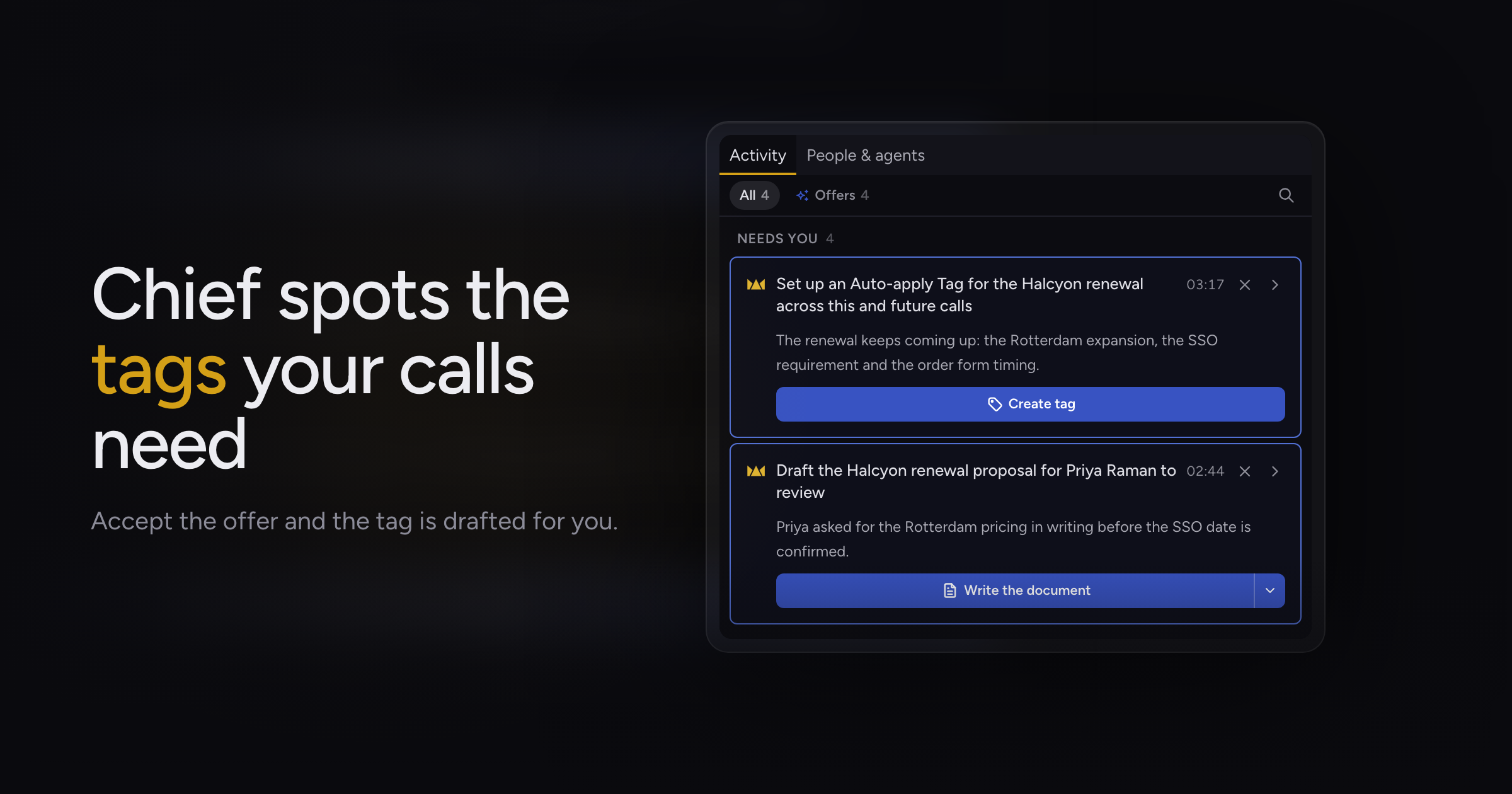
Chief offers an Auto-apply Tag during a live session when the conversation keeps returning to a topic, drafts one when you ask in chat, and the tag editor duplicates tags; renaming a speaker keeps your place in the transcript and corrects every line that voice spoke; and a person no longer shows under both their name and their email address.
Auto-apply Tags only existed if you stopped to write one yourself, often mid-call while people were still talking about the topic, and starting a similar tag meant retyping its instruction.
Today, we're adding Auto-apply Tag offers from Chief, along with Auto-apply Tags drafted from chat, tag duplication, and speaker renaming that keeps your place in the transcript.
Auto-apply Tags from Chief
During a live session, Chief offers an Auto-apply Tag when the conversation keeps returning to a topic. Accept the offer and the tag editor opens with a name and instruction already filled in, so you are one Create away from the tag. A live bug raised in the same stretch of the call comes first, and the tag offer follows it.
If you are partway through editing another tag when an offer arrives, Chief asks before discarding your unsaved work, then opens the offer.
You can also ask Chief for an Auto-apply Tag in chat. Chief shows a Create Auto-apply Tag card with the name, instruction and any color you asked for, and creates the tag once you approve it.
If your project already has a tag with that name, in any capitalization, Chief tells you it exists and shows no card. If you leave out what the tag is meant to match, Chief asks for an instruction rather than proposing an empty tag.
An automation you pre-approved never creates an Auto-apply Tag. Chief points you to a chat or the tag manager instead.
Duplicate a tag
The tag manager has a duplicate button on each tag. The copy opens with the tag's name followed by "copy", the same color and the same instruction, ready to edit and create.
Copying a copy counts up ("Pricing copy 3" rather than "Pricing copy 2 copy"), and Chief skips any name your project already uses. A copy of one of Chief's built-in tags, such as To-dos, becomes an ordinary Auto-apply Tag of your own carrying the same text.
Renaming speakers in place
Clicking a speaker's name, such as Speaker 1, to rename them used to jump the transcript back up the page, and you had to scroll down to find where you were. The transcript now stays where it is while you pick a name.
A short remark Chief matched to a voice later in the call used to keep its number after you named that voice. Naming a voice now corrects those lines too, each named once.
Fixes
- A person Chief recognized by voice could appear under their email address on some lines and their name on others. The transcript now shows the name they have on the call for all their lines, and "You" for your own when you have no name set.
Update to 1.1.42 and accept the next Auto-apply Tag Chief offers during a call. How transcription works & speaker attribution covers how Chief labels speakers.