Find your private Companion chats among your tasks on the web
Screenshots and questions you send to Companion from the Chief desktop app now show up as private tasks in the web app; new phone recordings get the default name Live Session on the web; and reprocessing a PDF keeps every page searchable.
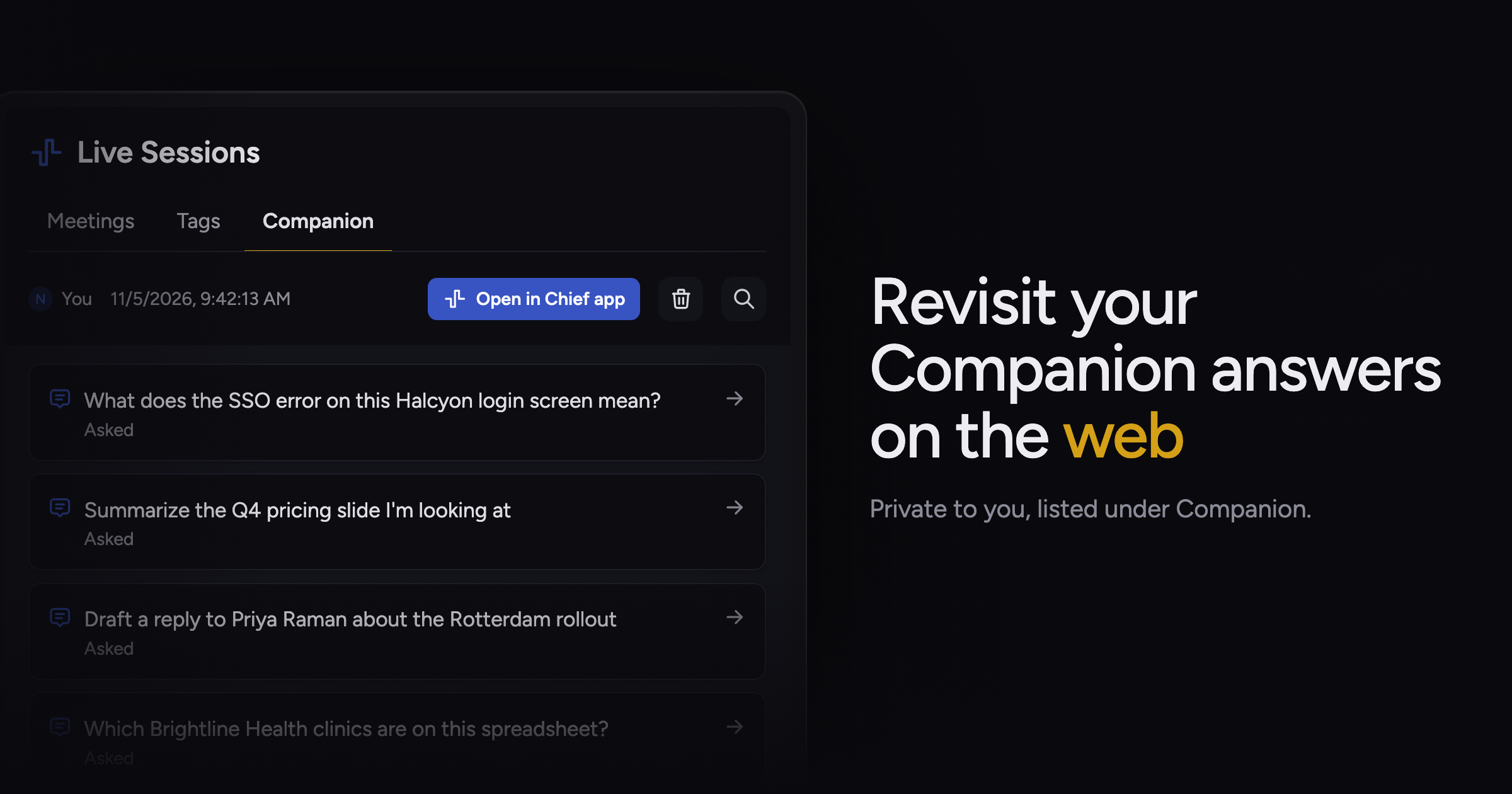
Questions you asked Chief about your screen from the desktop app had nowhere to go once you left your Mac, and they never showed up next to the rest of your work in the web app.
Today, we're bringing Companion chats to the web, along with the Live Session name for new phone recordings and a fix for reprocessed PDFs.
Private Companion chats
Companion is the new way to ask Chief about anything on your screen from the desktop app, by screenshot, by voice or from a quick bar, with no meeting running. Each conversation you start this way appears as a task in the web app, marked private.
Chief keeps your Companion chats in their own space for each project. Only you can open or add to them.
You start a Companion chat from the Chief desktop app. The web app shows those chats as tasks.
Companion tasks to revisit
- A screenshot question from this morning: open its task on the web and read the answer again.
- A voice question that needs a follow-up: open the task and continue the conversation from your browser.
- A Companion answer worth sharing in your notes: open the task and copy the answer into your document.
Live Session phone recordings
A new recording you start from the Chief phone app now carries the default name Live Session followed by the date in the web app. Recordings made before today keep their Session name.
Fixes
- Reprocessing a PDF, or a Google Drive PDF syncing again after an edit, left only its last few pages searchable. Chief now keeps the whole document searchable in chat answers and Library search.
Open your tasks in the web app after your next Companion question to find it waiting. Task visibility covers what private means for a task.